
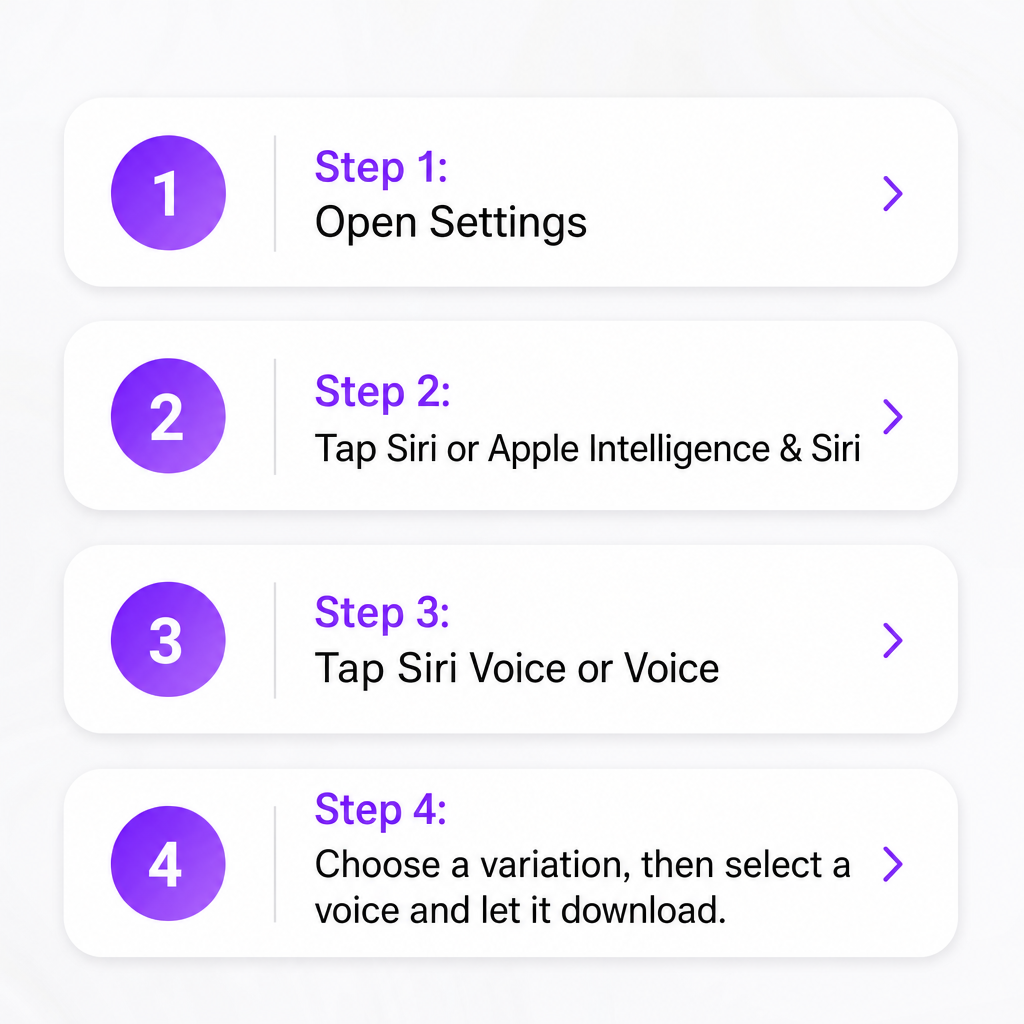
Changing Siri's voice takes about a minute: open Settings, tap Siri (or Apple Intelligence & Siri on newer software), choose Siri Voice, and pick an available variation and voice. That is the whole move on an iPhone or iPad. What trips people up is everything around it—why a voice you want is missing, how language and voice settings interact, why Apple Watch and HomePod behave differently, and whether you can load a voice of your own. This guide walks through how to change Siri voice on every Apple device, then clears up the parts Apple's menus don't explain well.
If what you actually need is a custom or multilingual voice for a video, course, or podcast rather than Apple's assistant, that's a different job entirely, and we cover where it fits near the end.
Table of contents
Change Siri's voice on iPhone or iPad
The voice controls live inside Siri settings. Open the Settings app, tap Siri or Apple Intelligence & Siri depending on your software version, then tap Siri Voice or Voice. From there you pick a variation—an accent or regional form, where one exists—and then a specific voice from the Voices list. If the voice needs to download, wait for that to finish before you test it, and keep the device on Wi-Fi if the file is large.
The variation and voice lists are tied to the selected language. Changing the language is a separate step: tap Language inside the same Siri settings and pick your preferred option. One detail worth knowing before you do it—switching Siri's language can also change spoken output in Maps, turn-by-turn directions, and Safari's "Listen to Page" feature, so it's not purely a Siri change. Available languages and voices vary by device and region.
Change the voice on Mac, Apple Watch, HomePod, and Apple TV
The path differs by device, and a couple of them don't hold their own setting at all.
On a Mac running macOS Sierra or later, open the Apple menu, choose System Settings, click Siri in the sidebar (you may need to scroll), then find the Voice setting and pick from Variations and Voices. Some languages offer only one voice or variation.
Apple Watch doesn't have an independent voice. It uses the same Siri language and voice set on its paired iPhone, so change it on the phone under Settings > Siri or Settings > Apple Intelligence & Siri, then choose the variation and voice. If you also want to adjust whether the Watch speaks replies aloud, open Settings > Siri on the Watch itself. On Apple Watch Series 3 and later Siri can speak responses; earlier models may show responses as text or images.
HomePod is configured through the Home app on a paired iPhone or iPad: open the app, find your HomePod, open its settings, and adjust the Siri language or voice options offered for that device. What's available can depend on the paired device and the Home owner's configuration, and some newer voice features are tied to supported hardware, languages, and regions.
Apple TV behaves differently again—Siri displays results on screen rather than speaking them aloud, so there's no spoken-voice choice to make. You can still set the language under Settings > General > Siri > Language.
Voice, language, and responses are three different settings
Most confusion about changing Siri's voice comes from treating these controls as one switch. They aren't. Knowing which one you're touching saves you from changing your whole system language just to get a different accent.
| Setting | What it changes |
|---|---|
| Language | The language Siri uses to understand and respond |
| Variation | A regional or accent-based version of a language |
| Voice | The specific voice within that language or variation |
| Siri Responses | Whether Siri replies aloud and how spoken replies behave |
| Read Messages voice | The voice used when Siri reads messages, where that option exists |
Two practical takeaways follow from this split. First, selecting a new voice does not guarantee Siri will start speaking—that's governed by Siri Responses, under the same Siri settings menu. If Siri went quiet after a voice change, open Siri Responses and choose a setting that allows spoken replies, then test with something short like asking for the weather. Second, changing the voice only reselects from Apple's supported voices for your chosen language, region, and device. It does not alter your own voice or build a custom assistant.
Why the Siri voice you want is missing
When a voice simply isn't in the list, it's almost always one of a handful of reasons rather than a bug:
- The selected language doesn't carry that voice. Voice libraries differ between languages; switch the language or variation and the list changes.
- Your region or device limits availability. Apple states Siri features vary by language, country, region, and device.
- The voice hasn't finished downloading. Stay on Wi-Fi and power until a large download completes.
- Your software uses a different menu name. Check under both Siri and Apple Intelligence & Siri.
- Your hardware doesn't support a newer feature. Options like Expressive Voices need compatible hardware and supported Siri software.
- You're editing the wrong device. Apple Watch, HomePod, and similar products inherit settings from a paired iPhone or a designated home device, so change those at the source.
If the list still won't update after a language or voice download, restart the device, check for a software update, and reopen Siri settings once the download has finished.
What Siri Expressive Voices actually change
On supported devices and in supported English-language regions, Apple offers Expressive Voices through Siri AI. These controls can adjust things like the voice, pace, and expressivity of spoken replies. The catch is availability: they depend on compatible hardware, software, language, and region, so the option won't appear on every iPhone, iPad, Mac, or home device.
For most people, you don't need them. If your goal is just a different accent or a more natural-sounding narrator, the standard Variation and Voice controls handle it. Expressive settings earn their place when you want finer control over how Siri delivers responses, not merely which voice says them.
Can you use your own voice instead of Siri's?
Not within Siri. Apple's built-in settings let you pick among supported voices and variations; there's no general control for importing or cloning a custom voice into the assistant. Changing the Siri voice also doesn't, by itself, ask you to share extra recordings—Siri's privacy and improvement options are separate, under Settings > Privacy & Security > Analytics & Improvements, where Improve Siri & Dictation governs whether Apple may store and review interaction samples. Worth a glance if you care about that.
The question usually hides a different need, though: people want a specific voice for a video, podcast, course, advertisement, or multilingual channel—not for Apple's assistant. That's a content-production job, and it's where we come in. Our Text to Speech tool converts a script into natural narration using 300+ AI voices, with text cues to shape pacing, emphasis, and emotional delivery. If you need the voice to sound like a specific person you're authorized to use, Voice cloning can recreate a voice from a short clean sample and reuse it across projects. And when the content needs to reach audiences in other languages, AI Dubbing localizes it across 33 languages.
None of that changes the voice Siri uses on your device—it can't, and it isn't meant to. Use voice cloning only with proper authorization for the voice being cloned. If you're weighing a ready-made voice against a cloned one for narration, our breakdown of a cloned voice versus a stock TTS voice walks through the trade-offs so you pick the right one before you record a single line.
Frequently asked questions
How do I change Siri's voice?
Open Settings > Siri or Settings > Apple Intelligence & Siri, tap Siri Voice or Voice, then select a variation and a voice. Let any download finish before testing.
Can I change Siri's voice without changing its language?
Usually yes. Open the voice controls and pick another voice or variation within your current language. Some choices may require selecting a different regional variation first.
Why does Siri sound the same after I change the setting?
The new voice may still be downloading, or Siri may be using a different language, paired device, or response mode. Confirm the download completed, check Siri Responses, and restart if needed.
Can I give Siri my own voice?
No. Apple's standard Siri settings only offer Apple-supported voices and variations, with no general option to upload or clone a custom voice.
Does changing Siri's voice change the voice in Maps?
Changing Siri's language can affect spoken output in Maps and turn-by-turn directions. The exact voice options depend on the language and device configuration.