
A chrome extension for text to speech turns anything on screen into spoken audio without leaving the browser. It can read a selected sentence, an entire article, a PDF preview, or a lesson page aloud, which is exactly what most people want when they search for one. The harder question is whether a browser reader is the right tool at all, because the moment you need a downloadable file, a consistent brand voice, or multilingual narration, a lightweight extension stops being enough. This guide explains how these extensions work under the hood, where their limits sit, and how to decide between reading in the browser and producing audio on a dedicated platform.
Table of contents
What a Chrome text-to-speech extension actually does
At its core, a Chrome text-to-speech extension is a browser add-on that converts written text into synthesized speech. The useful ones bundle some mix of reading selected text, reading a full page, pausing and resuming, adjusting speed, pitch, and volume, switching voices or languages, and triggering playback from a toolbar button, right-click menu, or keyboard shortcut. A few go further and generate a downloadable audio file.
Chrome itself ships a text-to-speech capability through the chrome.tts API, which extensions call to speak text, stop speech, pick a voice, set a language, change speed and pitch, and listen for events like start, pause, interruption, completion, or error. Chrome routes this through operating-system speech capabilities on Windows, macOS, and ChromeOS, and it also lets extensions register their own speech engines. That single detail explains why no two extensions behave identically: some lean entirely on the voices already installed on your device, some send your text to a cloud AI voice service, and some mix both. When you compare options, you are really comparing speech engines, not just interface buttons.
How the reading pipeline works
The mechanism is short to describe and worth understanding, because every limitation downstream traces back to it: webpage text flows into the extension, the extension hands it to a speech engine, and the engine returns audio the browser plays. In practice the extension reads the selected text or page content, splits it into manageable sections, sends each section to Chrome's built-in engine or an external service, chooses a voice and language, and plays the result.
Chrome's TTS API exposes the controls you would expect: a language identifier such as en-US, en-GB, or es-ES; a specific installed or extension-provided voice; a rate for speaking speed; a pitch value; a volume level; and a queueing setting that decides whether new text waits or interrupts whatever is already playing. One constraint shapes long-form reading directly. Chrome documents a default maximum utterance length of 32,768 characters for the speak() method, so a long article has to be broken into multiple chunks by the extension. Not every voice honors every option, and remote voices add latency and consume bandwidth. A more capable extension can implement its own engine through the ttsEngine API and supply custom voices instead of relying on whatever the operating system installed, which is how better-sounding readers differentiate themselves.
The three tool types and where each fits
Almost everything in the Chrome Web Store under this category falls into one of three buckets, and knowing which you are looking at saves a lot of disappointment.
The first bucket is built-in and system-voice extensions. These call Chrome's TTS functionality or the voices already installed on your computer. They shine for fast page reading, basic accessibility, offline or low-connectivity use, and simple speed and voice controls with minimal setup. Their weakness is voice quality and availability, which swings with your operating system, ChromeOS device, installed language packs, and the extension's own implementation.
The second bucket is cloud-based AI voice extensions. These ship your text to a remote service that generates speech, often with more natural pronunciation, wider voice selection, more expressive delivery, additional accents and languages, and sometimes audio downloads. They are better for content work but require an internet connection, and the provider's privacy policy and data handling suddenly matter a great deal once you are feeding in unpublished scripts, customer information, internal documents, or course materials.
The third bucket is not an extension at all: a web-based text-to-speech platform used alongside Chrome. When the job is producing audio rather than consuming it, a full platform gives you more room for voice selection, long-form scripts, pronunciation editing, voice cloning, audio export, multilingual production, dubbing, and API integration. Our Text to Speech platform converts text into speech using more than 300 AI voices and supports cloned voices, with speech generation across multiple languages and voice cloning in 33 languages. That makes it the better home than a lightweight reader when the output has to be reusable narration for a YouTube video, an online course, a podcast, an advertisement, or a localized media project.
Extension or web platform: choosing by task
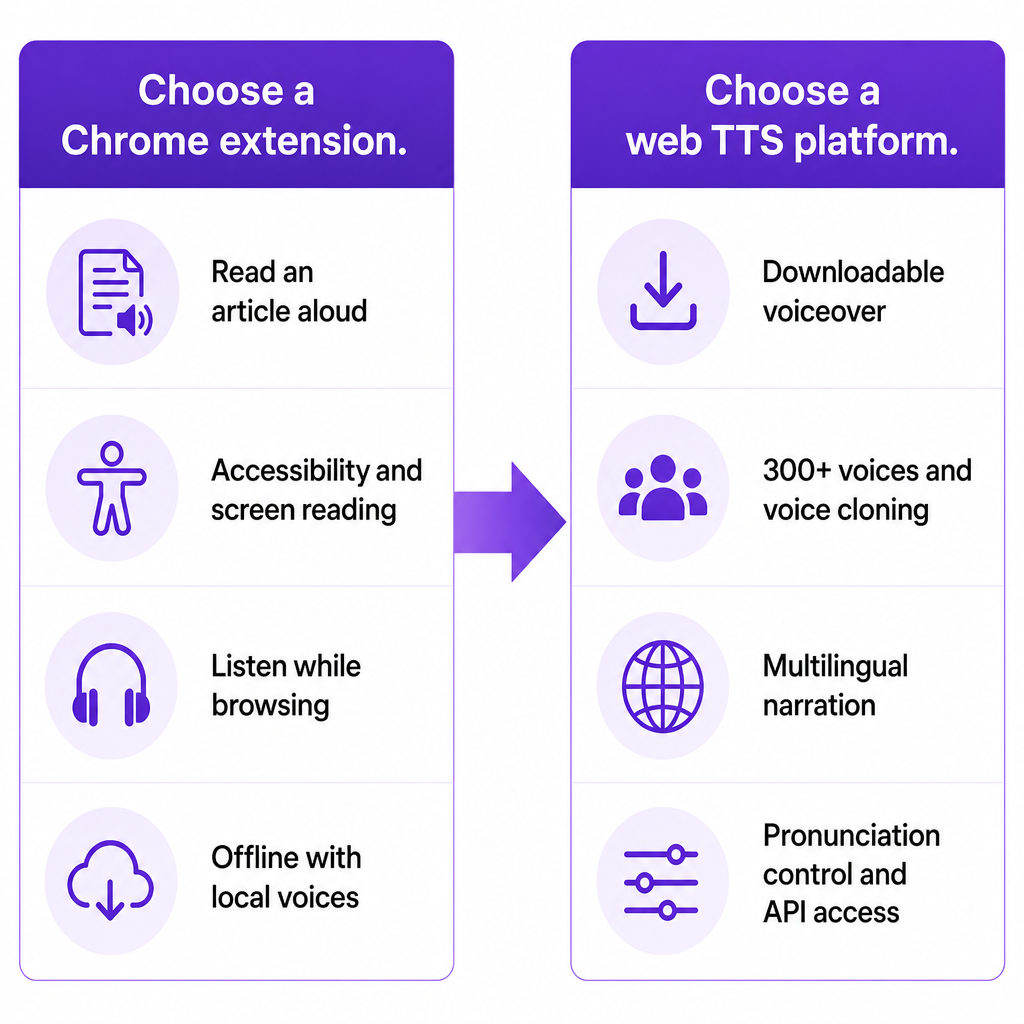
The cleanest way to decide is to match the tool to the immediate task rather than to a feature wishlist. The table below separates what a browser extension handles well from what tends to need a production platform.
| Requirement | Chrome extension | Web-based AI TTS platform |
|---|---|---|
| Read an article aloud | Strong fit | Usually unnecessary |
| Accessibility and screen reading | Strong fit | Possible, less direct |
| Listening while browsing | Strong fit | Less convenient |
| Downloadable voiceover | Depends on extension | Usually stronger |
| Large voice library | Varies widely | Usually stronger |
| Voice cloning | Uncommon | Common |
| Multilingual video narration | Limited | Stronger |
| Pronunciation controls | Basic to moderate | Moderate to advanced |
| API integration | Rare | Often available |
| Offline use | More likely with local voices | Usually needs internet |
The rule that falls out of this is short: reach for a Chrome extension when the task is listening to browser content, and reach for a web-based platform when the task is creating, exporting, localizing, or reusing audio. The two are complements, not rivals. If you want to understand where narration production begins, our walkthrough on how to convert text to speech online covers the handoff from reading to producing in more detail.
What to check before you install one
Because these extensions differ so widely under the hood, a few checks prevent most regrets.
Voice quality. Listen for natural pauses, correct pronunciation of names and acronyms, steady volume, sensible emphasis, and clean handling of numbers, dates, URLs, and technical terms. A voice that is fine for skimming an article can fall apart on a monetized video or a customer-facing course.
Language and accent. Confirm the exact regional variant you need. "English" does not tell you whether you get US, UK, Australian, or Indian English, and the same ambiguity applies to Spanish, Portuguese, and French. Chrome's TTS API accepts identifiers like en-US, en-GB, and zh-CN, but a tag only works if an installed or connected engine actually provides that voice.
Controls. For simple reading, play, pause, and speed may be all you need. For narration, pronunciation adjustment, highlighting, queue management, and audio export matter far more. Decide which camp you are in before judging an extension as under-featured.
Page compatibility. An extension may fail on Chrome internal pages, secure payment pages, canvas-based interfaces, embedded documents, video players, or pages that load content dynamically. A tool that reads ordinary articles cleanly can still choke on an unusual layout, so test it on the pages you actually use.
Privacy and permissions. This is the decision criterion people skip and later regret. An extension that reads only selected text can get by with limited access; one that analyzes every page you open will ask for broad site access. Google lets you control whether an extension reaches the current site, specific sites, or all sites, and you can change those permissions after installation. Before approving anything, check whether the extension reads browsing data, changes content on websites, sends text to a remote server, stores text or audio, and whether its privacy policy explains retention. Chrome's own guidance recommends requesting only permissions relevant to the main function and using optional permissions where possible; the activeTab permission, for instance, grants temporary access to the current site instead of permanent access to every site. As a practical rule, never paste confidential contracts, private customer records, or unpublished scripts into an extension you do not fully trust.
Fixing the problems people hit most
Most complaints about Chrome text-to-speech extensions trace back to a handful of causes, and each has a direct fix.
When the extension will not read the page, the content is usually protected, dynamically rendered, or incompatible. Select a smaller block manually; if that still fails, move the text into a compatible interface. When the voice mispronounces a name, respell it phonetically, add punctuation, or use a pronunciation feature if one exists, and keep a pronunciation guide for recurring brand names across a project.
When speech stops unexpectedly, you have likely exceeded the engine's utterance limit or triggered a new speak() call that interrupted the previous one; Chrome's API interrupts ongoing speech by default unless the extension queues it. When the voice sounds robotic, try a different voice, slow the rate slightly, add punctuation, and shorten dense sentences before concluding the tool is the problem. When audio is delayed, remember that remote engines must send text over the internet and generate audio before playback, and Chrome flags remote voices as potentially higher-latency resources that also use bandwidth, so network conditions and text length both play a part. And when an extension requests excessive access, do not approve on reflex; restrict site access to the current site or selected sites, and if the request does not match the stated purpose, choose a different tool.
There is also a category of problem that no fix inside the extension can solve, which is when you simply need more than reading. The moment the deliverable is a downloadable WAV or MP3, a consistent character voice across many videos, cloned voices, multilingual dubbing, or a repeatable team workflow, a browser reader is the wrong instrument. For those jobs our AI Dubbing platform handles multilingual video localization across 33 languages, while developers who need programmatic generation can build on the Text to Speech API and create reusable custom voices through the Voice Cloning API. A quick way to tell the two paths apart: if a learner needs a page read aloud, an extension is ideal; if a course producer needs consistent narration, downloadable audio, and language versions, asking every learner to install the same extension is the wrong design, and a platform is the better fit.
One point worth stating plainly, since people search for it: we publish a web-based Text to Speech product and related APIs, not a dedicated Chrome Web Store extension. Use a browser extension when you want to listen to webpages, and use our platform when you need reusable narration, cloned voices, multilingual content, or a scalable creator and business workflow.
Frequently asked questions
What is the best Chrome extension for text to speech?
The best one is the one that matches your task. For reading selected webpage text, prioritize page compatibility, voice clarity, speed controls, and limited permissions. For downloadable narration, multilingual production, or voice cloning, choose a dedicated AI text-to-speech platform instead of a browser reader.
Does Chrome have built-in text to speech?
Yes. Chrome provides the chrome.tts API, which extensions use to generate speech through available operating-system or extension-provided voices.
Can a Chrome TTS extension read any website?
No. Some pages restrict access, use complex or dynamic layouts, or contain content an extension cannot extract, and many extensions need site permissions to read page content at all.
Can Chrome text to speech create an MP3?
It depends on the extension. Chrome's basic TTS API is built to play synthesized speech, not to export files, so you need an extension or platform that offers an explicit download or audio-export feature.
Is it safe to install a text-to-speech extension?
It can be, when the extension comes from a trustworthy developer and requests only appropriate permissions. Review its Chrome Web Store listing, privacy policy, requested site access, data practices, reviews, and update history first. Google advises installing only extensions you trust and provides controls for reviewing and limiting site access.
Can I use a Chrome extension for YouTube voiceovers?
You can use one to preview or listen to a script, but final YouTube production usually needs downloadable audio, a consistent voice identity, pronunciation control, and licensing clarity, which a dedicated TTS platform handles far better.