You inserted a voice changer, double-clicked the file, and ChromeOS threw back "This app isn't compatible with your device" — or refused the .exe entirely. That wall is exactly why searching for a voice changer for chromebook feels harder than it should. Most voice changers are native Windows or macOS programs, and ChromeOS runs as a browser-first, sandboxed system that won't execute them, as the Neverinstall team documents in its analysis of Chromebook app limitations. Maybe you want a voice mod for Discord raids. Maybe you're recording YouTube narration, dubbing an e-learning module, protecting your identity on a call, or just messing around with a robot voice. The good news: browser-based tools skip installation completely. By the end of this, you'll know exactly which free option fits your use case — and how to switch it on today, without fighting a single compatibility error.
Table of Contents
- Why Chromebooks Block Most Voice Changers — And the 3 Paths That Actually Work
- The Best Free Voice Changer Options for Chromebook, Compared
- How to Set Up a Browser-Based Voice Changer on Chromebook (Step-by-Step)
- Real-Time vs. Recorded Voice Transformation: Which One You Actually Need
- Using Android Voice Changer Apps on Chromebook (When the Browser Won't Cut It)
- Getting Studio-Quality AI Voices on Chromebook Without a Single Download
- Your Chromebook Voice Changer Setup Checklist
- Chromebook Voice Changer Questions, Answered (FAQ)
Why Chromebooks Block Most Voice Changers — And the 3 Paths That Actually Work
The core constraint is simple. ChromeOS is optimized as a thin-client operating system that runs primarily browser and cloud applications, and it does not natively support Windows or macOS programs. That single design decision is why the classic "download the voice changer .exe and run it" path collapses before it starts. The file downloads, then just sits there — ChromeOS has no way to execute it. Understanding this saves you hours of trial and error, because it tells you which tools are even worth trying.
There are exactly three ways to run software on a Chromebook, and each one rates differently for voice-changing reliability.
Web apps (browser). This is the path of least resistance and the most reliable by a wide margin. A voice changer that loads in a Chrome tab and requests microphone access works on every Chromebook, regardless of the year, chipset, or whether IT locked down the device. Zero install, no admin rights, no compatibility layer. If a tool runs in the browser, it runs on your machine.
Android apps (Google Play Store). The ChromeOS team added Play Store and Android app support back in 2016, letting existing Android apps run on Chromebooks with adjustments for larger screens and keyboard/trackpad input. According to the ChromeOS developer documentation, these apps run without compromising speed, simplicity, or security — but they were built for phones and tablets first, and they must adapt to landscape-first displays and x86 hardware on some devices. The practical catch for voice changers: routing an Android app's altered audio into a browser call or a separate app is hit-or-miss, because the app runs inside a container.
Linux container (Crostini). Supported Chromebooks can run Linux apps in a container. For voice changing, this is overkill — you'd spend more time configuring the environment than actually using it. Skip it unless you're already a Linux user with a specific reason. For the vast majority of readers, it's the wrong tool.
The best voice changer for a Chromebook isn't the one with the most features — it's the one that never asks you to install anything.
There's a future-proofing reason to lean browser-first, too. Legacy Chrome Apps are on the way out. According to Google's support documentation, user-installed Chrome Apps lose support starting with ChromeOS version 138 in 2025, with a compatibility flag extending support only until version 169 in 2028. Translation: don't build your workflow around an old Chrome App you found in a forum post. It has an expiration date. Browser-native web apps and Android apps are the long-term route.
One more reason cloud beats local on ChromeOS: storage behavior. Users in ChromeOS discussion threads report that when local storage drops near 1 GB, the system can automatically delete files in the Downloads folder. A voice changer that stores everything in the cloud or processes in-browser never runs into that. A local install that dumps files to Downloads might vanish when you least expect it.

So here's the thesis the rest of this guide builds on: for a ChromeOS voice changer, browser-based is the default, Android is the fallback, and Linux is the exception you almost never need.
The Best Free Voice Changer Options for Chromebook, Compared
Picking the right free voice changer for chromebook starts with matching the tool type to what you're actually doing — not chasing whichever app has the flashiest homepage. The four realistic categories break down cleanly by whether they install, whether they work in real time, and how good the output sounds.
| Tool Type | Install Needed | Real-Time or Upload | Free Tier Reality | Best For |
|---|---|---|---|---|
| Browser upload voice changer | No | Upload-based | Free effects, no login on some | Quick fun edits, pitch/timbre swaps |
| Browser mic-access extension | No (adds extension) | Real-time | Free, mic-permission dependent | Live browser calls, Discord in-tab |
| Android voice changer app | Yes (Play Store) | Real-time | Free w/ ads or limits | Offline use, phone-style features |
| AI voice / dubbing web platform | No | Upload-based | Free credits, then paid tiers | Studio-quality narration & dubbing |
Each row solves a different problem. Upload-based browser tools let you upload a recording and apply pitch and timbre effects — deeper voice, higher voice, character effects — entirely online. One such browser upload voice changer service works this way, and the model is inherently ChromeOS-compatible because nothing installs. The tradeoff is that it's not real-time: you upload, process, then download the result. Great for editing a clip, useless for a live call.
Chrome extension-based changers flip that. A voice-changer extension can affect every web application that uses a microphone or audio capture device, which means real-time effects inside browser-based calls. That's the closest thing to a live voice mod you'll get on a Chromebook. But it leans entirely on Chrome's extension and mic-permission model rather than a system-wide virtual audio device — a distinction that matters enormously once you try to feed it into a specific app. The downloadable desktop Discord changers people recommend on Windows don't run on ChromeOS at all, so an in-tab extension is your live option here.
Then there are the two ends of the quality spectrum. On one side, gimmicky pitch-shifters: fine for gaming and pranks, where a robot or chipmunk voice is the whole point. On the other, AI voice transformation, where the goal is natural, publishable audio. If you're producing content anyone will actually listen to — narration, dubbing, training modules — you belong in that AI tier, and we'll get concrete about why further down.
How to Set Up a Browser-Based Voice Changer on Chromebook (Step-by-Step)
A browser-based voice changer on a Chromebook takes about two minutes to get running. Here's the exact sequence, with the ChromeOS-specific clicks that trip people up.
- Open the web tool in Chrome. Navigate to the voice-changer web app in a new tab. No download, no admin rights, no installer. If the tool loads, you're already past the hardest part that desktop users face.
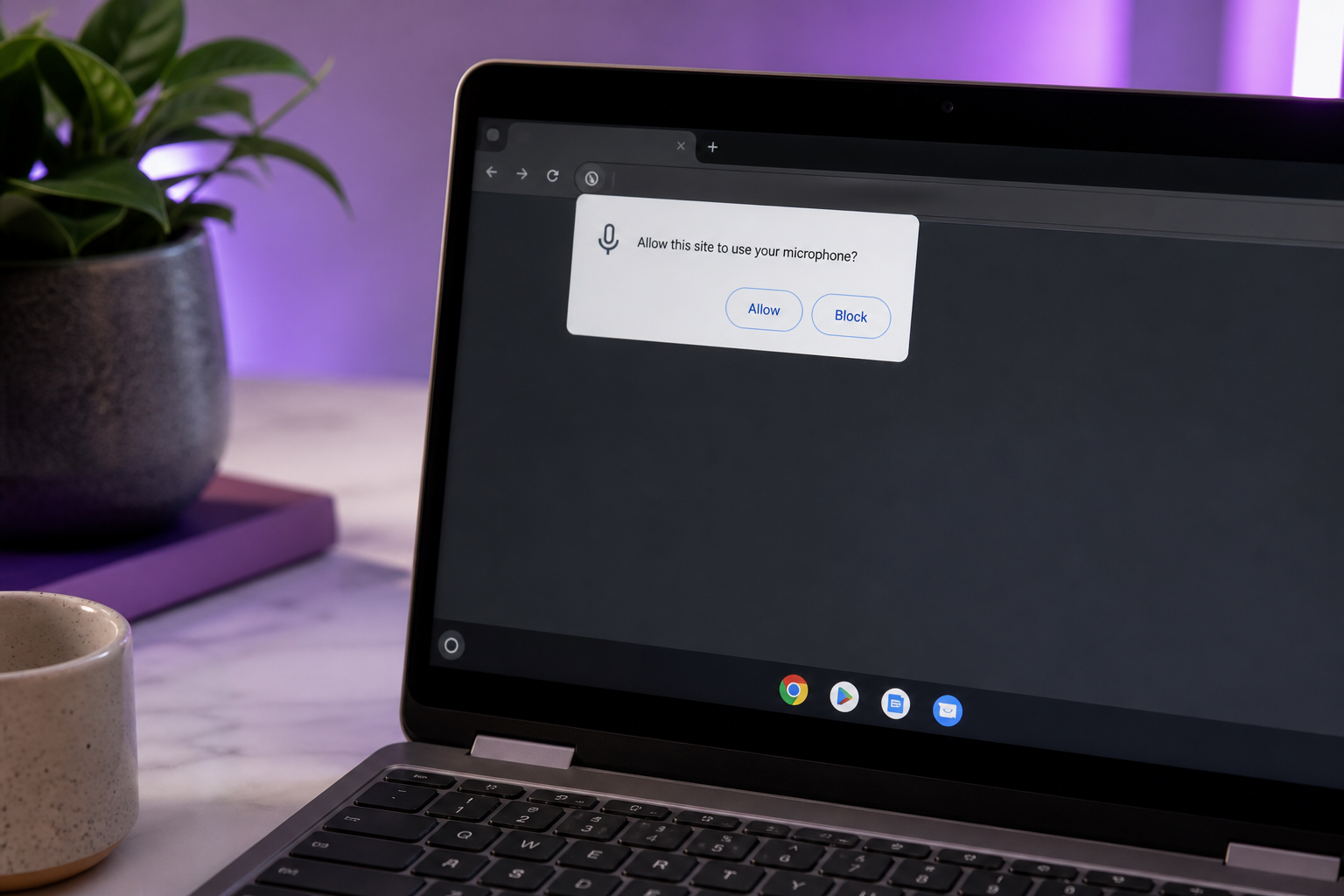
- Grant microphone permission. When the browser prompts you, click Allow. This is the single most common failure point — if you dismissed the prompt or clicked away, the site never hears your mic and the effect appears "broken" when it's really just muted.
- Fix mic permission if it's blocked. Go to
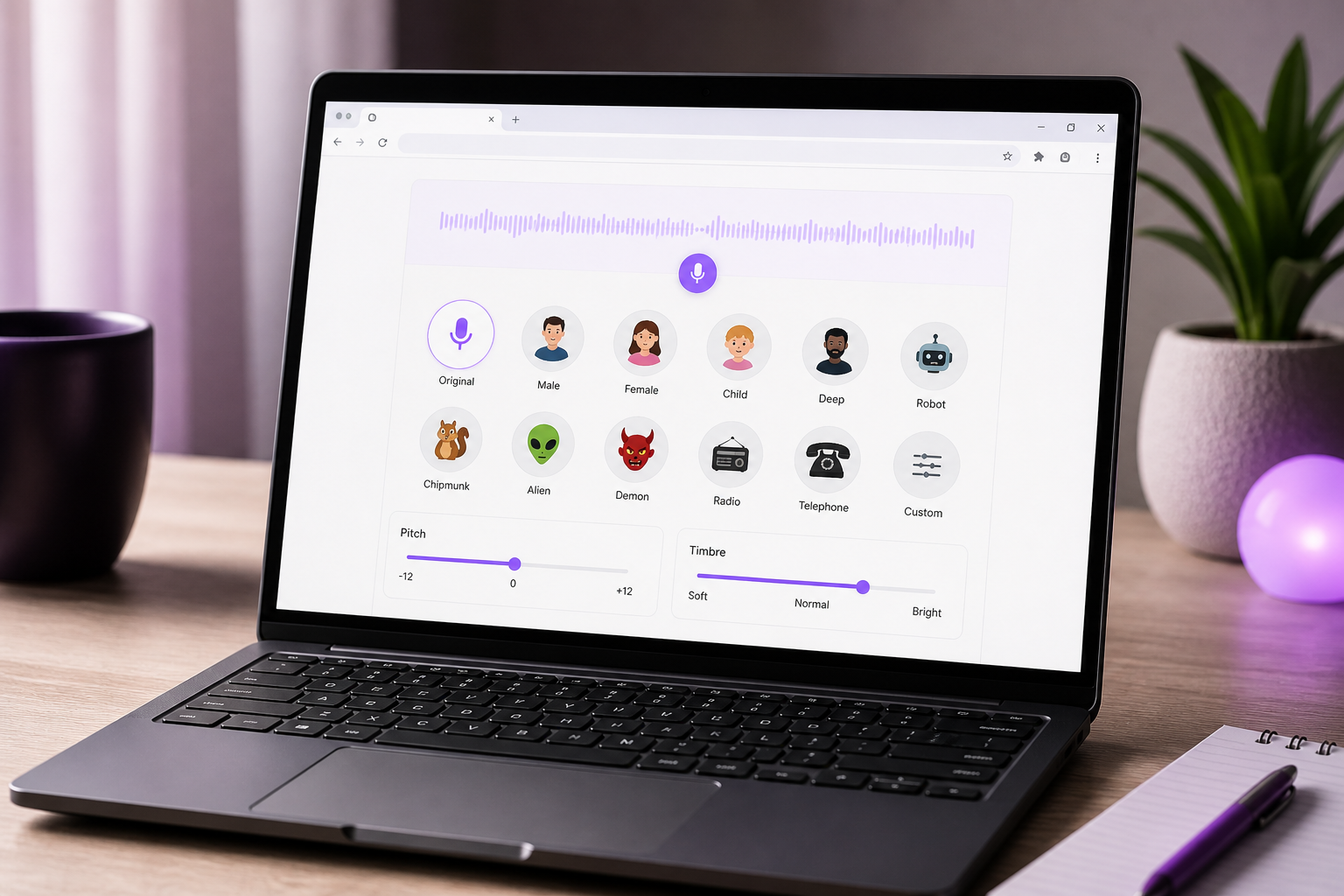
chrome://settings/content/microphonein the address bar. Confirm the site sits under "Allowed," and — this matters on Chromebooks with a USB headset — check that the correct input device is selected as the default. ChromeOS will happily route audio to the built-in mic when you meant to use your headset. - Select and adjust your voice. Choose a preset (deeper, higher, robotic, a character voice) or drag the pitch and timbre sliders. Most browser tools give you a live preview so you can hear the change before committing.
- Route or monitor your output. Here's the ChromeOS reality nobody warns you about: there's no easy VB-Cable-style virtual audio device on Chromebooks. Documentation of Chromebook OS limitations, including Splashtop's support notes on ChromeOS constraints, points to exactly this kind of systemic restriction on audio routing and virtual devices. So use the tool's built-in monitoring, or select the browser tab as the audio source in any calling app that allows it. Don't expect to pipe a system-wide altered mic into every app at once.
- Test before going live. Do a test recording, or hop into a test call, and confirm both the effect and the latency. Real-time browser processing adds a small delay — you want to know how much before you join anything that matters.
If a tool loads in your Chrome tab and asks for mic access, you're most of the way to a working voice changer — no admin rights, no downloads, no compatibility errors.
That routing limitation in step 5 is the deciding factor for a lot of readers. If you need a live effect and your calling app lives in a browser tab, you're set. If it needs a system-wide virtual mic, ChromeOS simply won't hand you one — which is the honest reason a voice changer for chromebook behaves differently than the same idea on Windows.
Real-Time vs. Recorded Voice Transformation: Which One You Actually Need
Most guides skip the fork that decides everything. Live voice altering — Discord, gaming, calls — demands low latency and depends on audio routing. Recorded transformation — YouTube, podcasts, e-learning dubbing — has no latency pressure at all, so it prioritizes voice quality and editing control. Get this distinction right and the tool choice makes itself.
| Use Case | Latency Need | Quality Need | Recommended Tool Type |
|---|---|---|---|
| Discord / voice-chat gaming | High (low-latency) | Low–medium | Browser mic extension |
| Prank / novelty calls | High | Low | Browser mic extension |
| YouTube narration | None | High | AI voice / dubbing web platform |
| E-learning / training dub | None | High | AI voice / dubbing web platform |
| Podcast voice styling | None | Medium–high | Upload voice changer or AI platform |
The matrix splits this way for a mechanical reason. Real-time use cannot tolerate the delay of an upload-process-download loop, so gamers and pranksters should accept a browser extension's simpler effects and prioritize speed. There's no way around it — the moment audio has to leave your machine, get processed, and come back, you've lost the live conversation.
Recorded content flips the priority entirely. When latency doesn't matter, quality wins, and that's exactly where AI transformation pulls away from a pitch-shifter. The gap is real and documented. A game-development community discussion notes that many free TTS-based character voices are usable but "will sound unnatural" — fine for a quick placeholder, wrong for anything you publish. By contrast, Slator's analysis of AI voice cloning for dubbing emphasizes that the target isn't just intelligible audio but natural, authentic, emotionally resonant voices suitable for professional content localization. That's the bar publishable work has to clear.
For the narration, dubbing, and e-learning rows, this is why an AI platform beats a novelty changer outright. AI voice cloning, a deep library of natural voices, and true multilingual output solve problems a pitch slider can't touch — you're not distorting a voice, you're generating a clean, consistent one. When your goal is a whole video series or a training course narrated in several languages, those natural voices are the difference between something people finish and something they close after ten seconds.
Using Android Voice Changer Apps on Chromebook (When the Browser Won't Cut It)
Sometimes the browser genuinely won't do what you need — you want offline use, or a specific feature no web tool offers. That's when an Android voice changer app becomes worth considering. Just go in with clear expectations, because Android apps on ChromeOS carry real caveats.
- Can your Chromebook even run Play Store apps? Android app support arrived on ChromeOS in 2016, but not every Chromebook has the Play Store enabled — older devices, managed corporate units, and school-issued machines often have it locked out. Open your Settings menu and look for a "Google Play Store" section; if it's there, turn it on. If it's absent entirely, you're staying with browser tools, and that's the end of the Android route for you.
- Why Android voice apps struggle with mic routing. These apps share code with their phone and tablet versions but must handle landscape-first screens, x86 architecture on some devices, and keyboard/trackpad input as first-class methods. More importantly, they run inside a container, so feeding their altered audio into a separate browser tab or a different app's call is unreliable — there's no system-wide virtual mic to bridge them. Documented Chromebook OS constraints, including Splashtop's support notes, point to the same systemic limits on audio routing.
- Permissions and background-audio quirks. Android voice apps may stop processing audio the moment you background them, so a changer running in a minimized window can silently quit working. Mic permissions also have to be granted twice — once at the Android-app level, and once at the ChromeOS level. Grant both, or the app hears nothing. The practical move is to test inside the app first to confirm the effect works, then test whether any other app can actually hear the output.
- When it's actually worth it. Reach for an Android app only for offline use — some function without internet, unlike web tools that need a live connection — or for a niche feature the browser options lack. For everything else, stay browser-first. The container's routing limits mean you'll usually spend more time troubleshooting than you'd save.
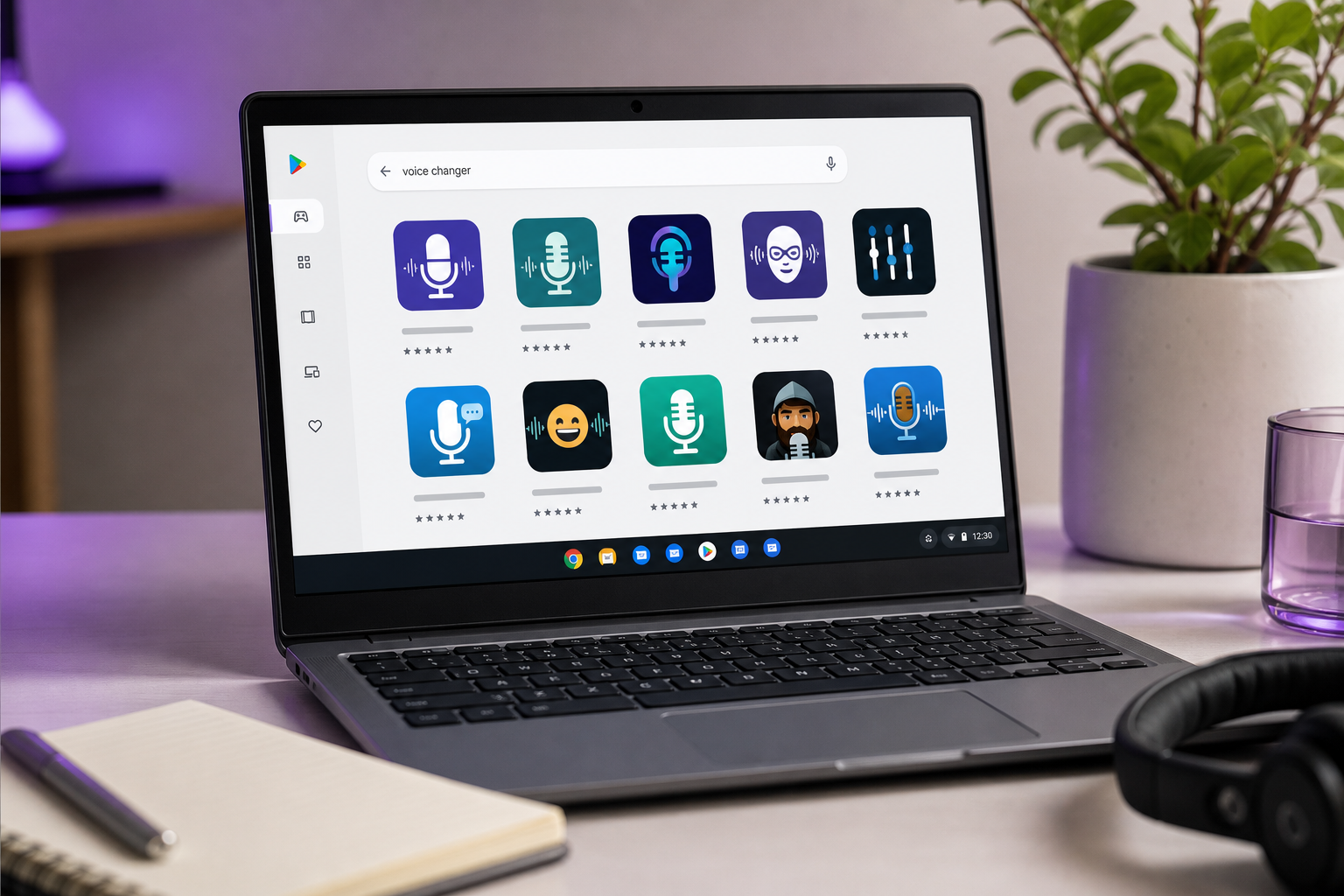
The short version: an Android voice changer app is a fallback, not a first choice. If the browser path covered your use case in the earlier sections, there's little reason to fight the container's audio quirks.
Getting Studio-Quality AI Voices on Chromebook Without a Single Download
Here's the reframe that changes everything for creators. This isn't about "changing" your voice with a pitch slider — it's about transforming or replacing it with AI, entirely in the browser. And because it runs in a Chrome tab, it's ChromeOS-friendly by default. No installer, no compatibility error, no admin rights. The Chromebook that couldn't run a desktop .exe runs a full AI voice studio without blinking.
Three browser-native capabilities separate this tier from novelty changers, and each solves a problem a pitch-shifter can't.
Voice cloning from a short sample. Record a brief clip once, and generate a reusable AI voice you can call up anytime. This is how localization practitioners work at scale: a localization company's analysis of voice cloning describes cloning a brand's primary voice a single time, then reusing it across every language — which cuts the need to hire separate human voice talent for each market and speeds the whole production cycle. You clone your voice once and stop re-recording forever.
A large library of natural AI voices. Instead of one gimmick effect, you pick from hundreds of ready-made, natural-sounding voices. Need a warm narrator for e-learning and a crisp announcer for a promo? Select an AI voice for each, no recording required.
Multilingual dubbing. Turn one recording into many language versions. This is where the business case gets hard to argue with. A peer-reviewed study on gen-AI multilingual dubbing systems, alongside industry analysis from localization firms, finds that AI-based dubbing significantly reduces production time and cost versus traditional human dubbing, while localizing content across multiple languages simultaneously. Reiterating the quality bar from Slator's coverage: the goal is natural, authentic, emotionally resonant output — not the "unnatural" free-voice ceiling the game-dev community flagged earlier.
The browser workflow is refreshingly short. Open the platform in Chrome. Record or upload your narration. Clone your voice or pick an AI voice from the library. Optionally dub into another language. Export the finished audio or video straight for YouTube or an e-learning course. No desktop app touches your machine at any step.
On a Chromebook, the ceiling for voice work isn't your hardware — it's whether you're using a toy pitch-shifter or an AI studio that runs in a browser tab.
This is where DubSmart AI fits the Chromebook reality precisely: browser-first, all-in-one, with voice cloning from about 20 seconds of audio, 300+ natural voices, and dubbing from 60+ source languages into 33 target languages — the tier built for serious content localization rather than one-off gags. Developers and agencies that want to integrate voice AI into their own tools can build on the Voice Cloning API instead of a UI. For everyone else, it's a full studio that never asks you to install a thing.
Your Chromebook Voice Changer Setup Checklist
Run through this before you commit to any voice changer for chromebook — it turns the decisions above into a two-minute setup you can act on right now.
- Name your goal first. Real-time gaming, recorded content, or multilingual dubbing? Every other choice on this list flows from that one answer, so decide it before you open a single tool.
- Match the tool type from the comparison table. Browser mic extension for live use, upload or AI platform for recorded quality. Don't force a novelty changer to do a narration job — the mismatch is where people waste the most time.
- Confirm Chrome mic permissions. Check
chrome://settings/content/microphoneand set the correct input device — built-in versus USB headset — before your first session, not mid-call. - Test audio routing before going live. Do a test call or recording. ChromeOS has no easy virtual-mic device, so verify the app on the other end actually hears the effect rather than assuming it will.
- For content, pick your AI voice or clone before recording. Choosing the voice up front keeps your narration consistent across an entire project or language set, instead of discovering a mismatch three episodes in.
- Check free-tier limits early. Confirm free credits, effect caps, watermarks, or length limits so you don't hit a wall mid-project. Plan for a paid tier if you need studio-grade, publishable output.
- Decide if you'll scale to other languages. If yes, choose a platform that dubs and clones in one place instead of stitching separate tools together for each market.
Now open Chrome and run your first test. No download required — that's the whole point of doing this on a Chromebook.
Chromebook Voice Changer Questions, Answered (FAQ)
Is there a completely free voice changer for Chromebook?
Yes. Browser upload tools and some Chrome mic-access extensions are free with no install at all. The nuance the table can't fully show: "free" usually means free effects with limits — watermarks, length caps, or ads — rather than unlimited studio output. AI platforms typically hand you free credits to start, then move you to paid tiers for higher-quality, longer, or multilingual work. So a free voice changer for chromebook absolutely exists; just read the fine print before you build a project around the free tier.
Can I use a voice changer on Discord with a Chromebook?
Honestly, it's constrained. ChromeOS has no simple virtual-mic device, so the system-wide routing you'd use on Windows isn't available here. A Chrome mic-access extension can apply real-time effects to browser-based Discord running in a tab, which is your best live option. The desktop-style Android Discord app may not reliably receive the altered audio because of container routing limits documented across Chromebook OS references. Always run a test session before you go live with friends.
Do voice changers work without internet on ChromeOS?
Web-based tools need a connection — no internet, no effect, since the processing happens in the cloud or in a loaded web app. Some Android voice apps run offline, and that's one of the few genuine reasons to choose them over browser tools. Keep in mind that ChromeOS itself leans heavily on cloud and web workflows by design, as Neverinstall's analysis of the platform emphasizes, so offline voice work is the exception rather than the norm on these devices.
Is it safe to grant a website microphone access?
Only grant mic access to reputable tools you actually trust, and revoke it afterward through chrome://settings/content/microphone. Because Chrome extensions can affect any web app using an audio capture device, be deliberate about what you install — an always-on live mic extension has broader reach than a one-off upload tool. Recorded and AI workflows that process uploads are generally lower-risk than an always-listening real-time extension, so factor that into which category you pick.