You found the perfect voice changer, downloaded the installer, double-clicked it — and your Chromebook did nothing. No window. No setup wizard. Just a file your ChromeOS device flat-out refuses to open. That happens because ChromeOS does not run native Windows .exe or Mac .dmg desktop applications. The voice changer you grabbed was built for an operating system you're not running. If you've searched for a voice changer for chromebook to sound different in a Discord voice chat, spice up a stream, narrate a YouTube video, or dub clips for another audience, you've hit a wall that thousands have hit before you. Users on r/chromeos have publicly asked whether any voice-changing app or extension works reliably on a Chromebook for Discord and Google Meet, and the answers point to "limited options and unreliable routing". Here's the payoff: there are three working routes — browser-based tools, Android apps via Google Play, and Linux apps through Crostini — plus a separate path for content production that most guides skip entirely. Real-time voice changing on a Chromebook is genuinely harder than on Windows. Recorded, file-based voice changing is easy, and often better.
Table of Contents
- Why Chromebooks Block Most Voice Changers (and the 3 Routes That Actually Work)
- Real-Time vs. Recorded: Picking the Right Voice Changer Method for Your Goal
- Method 1 — Using a Browser-Based AI Voice Changer (No Install Required)
- Method 2 — Installing an Android Voice Changer App via Google Play
- Method 3 — Running a Linux Voice Changer on Chromebook with Crostini
- Best Voice Changer Method by Use Case: Gaming, Streaming, and Content Creation
- Your Chromebook Voice Changer Setup Checklist
- Chromebook Voice Changer Questions, Answered (FAQ)
Why Chromebooks Block Most Voice Changers (and the 3 Routes That Actually Work)
The technical reason matters, because it explains every limitation that follows. ChromeOS does not run native Windows or Mac desktop installers. It runs three things: web apps inside Chrome, Android apps through Google Play, and Linux apps inside the Crostini container. The OS is sandboxed by design for security — and that sandbox is exactly why the "virtual audio driver" trick most Windows voice changers rely on for live routing often falls apart on a chromebook voice changer setup. According to the ArchWiki Crostini documentation, Crostini runs full Linux distributions "in a container" without enabling developer mode, which means Linux audio is an add-on environment, not a native OS feature. There's no system-wide audio layer for a third-party app to hijack the way there is on Windows.
The niche is small but real. According to packaging the topic into a roundup, voice software vendor Murf.ai lists only six "best voice changers for Chromebook", and iMyFone's guide highlights just four ChromeOS-compatible options like MagicMic, Clownfish, and Celebrity Voice Changer. Both are vendor sources, but the takeaway holds: very few products bother to market Chromebook compatibility, which tells you how thin the field really is.
The problem was never your Chromebook — it's that voice changer makers assumed everyone runs Windows.
Here are the routes that actually work on ChromeOS.
Browser-based tools and extensions — No install. Everything runs inside Chrome. Examples include "Voice Changer for Chrome", a free real-time soundboard for Meet and Zoom, and Clownfish, which affects "every web application that uses microphone or other audio capture device." This is the most Chromebook-friendly category — Murf.ai notes Clownfish works across different models without heavy system requirements. For recorded content production, a browser-based AI tool like DubSmart AI runs the same way: zero install, just a URL.
Android apps through Google Play — File-based. Apps like "Voice changer with effects" follow a record → apply effect → share workflow. Good for clips, weak for live routing.
Linux apps through Crostini — The most flexible and the most complex. Requires enabling Linux and configuring PulseAudio by hand.
The honest caveat — Even vendors haven't fully solved native ChromeOS support. Voice.ai's own Chromebook page currently lists its voice changer as "coming soon" — proof that the gap between marketing and working software is real.
Real-Time vs. Recorded: Picking the Right Voice Changer Method for Your Goal
Before any tutorial, fork your decision. Are you doing live voice changing — Discord, Google Meet, gaming, streaming — or recorded voice changing — YouTube videos, narration, dubbing, podcast edits? That single answer determines which method is worth your time. A real-time voice changer chromebook setup and a recorded-content workflow have almost nothing in common on ChromeOS.
| Method | Real-time capable | File-based / recorded | Install required | Best for |
|---|---|---|---|---|
| Browser extension | Yes (web apps only) | Limited | No | Live Meet/Zoom/Discord-web |
| Browser AI tool (DubSmart AI) | No | Yes | No | YouTube, dubbing, narration |
| Android app (Google Play) | Rarely (routing issues) | Yes | Yes (from Play) | Clips, social sharing |
| Linux app (Crostini) | Yes (with config) | Yes | Yes (Linux setup) | Power users, custom routing |
Live use is genuinely constrained on a Chromebook, and the matrix reflects that honestly. Browser extensions are the most reliable live option because they hook directly into the browser's getUserMedia audio input — the Clownfish listing confirms it affects every web app using the microphone, which is precisely why it works for browser-based calls but not native desktop clients. Android apps are a different story. As r/chromeos contributors note, Android apps on ChromeOS "often cannot route processed audio into desktop Chrome or Discord," so treating one as a live-mic solution sets you up for frustration.
For polished, recorded content, browser-based AI tools are the strongest path on any Chromebook. No install, file in and file out, and they connect to a wider content workflow instead of stopping at a single modulated clip. This is the route where an online voice changer stops being a novelty and becomes a production tool. You record or upload audio, apply a target voice, and download a clean file ready for your editor. Better still, the same engine that changes a voice can clone a voice from a short sample and feed it into Text to Speech, so the work you do once gets reused across many projects. That multiplier doesn't exist with a one-session live filter.
Method 1 — Using a Browser-Based AI Voice Changer (No Install Required)
This is the most Chromebook-friendly route and the best path for recorded content. There's nothing to install, no Play Store dependency, and no Linux container to configure. You open a tab and work. For an online voice changer for chromebook, this is where most creators should start.
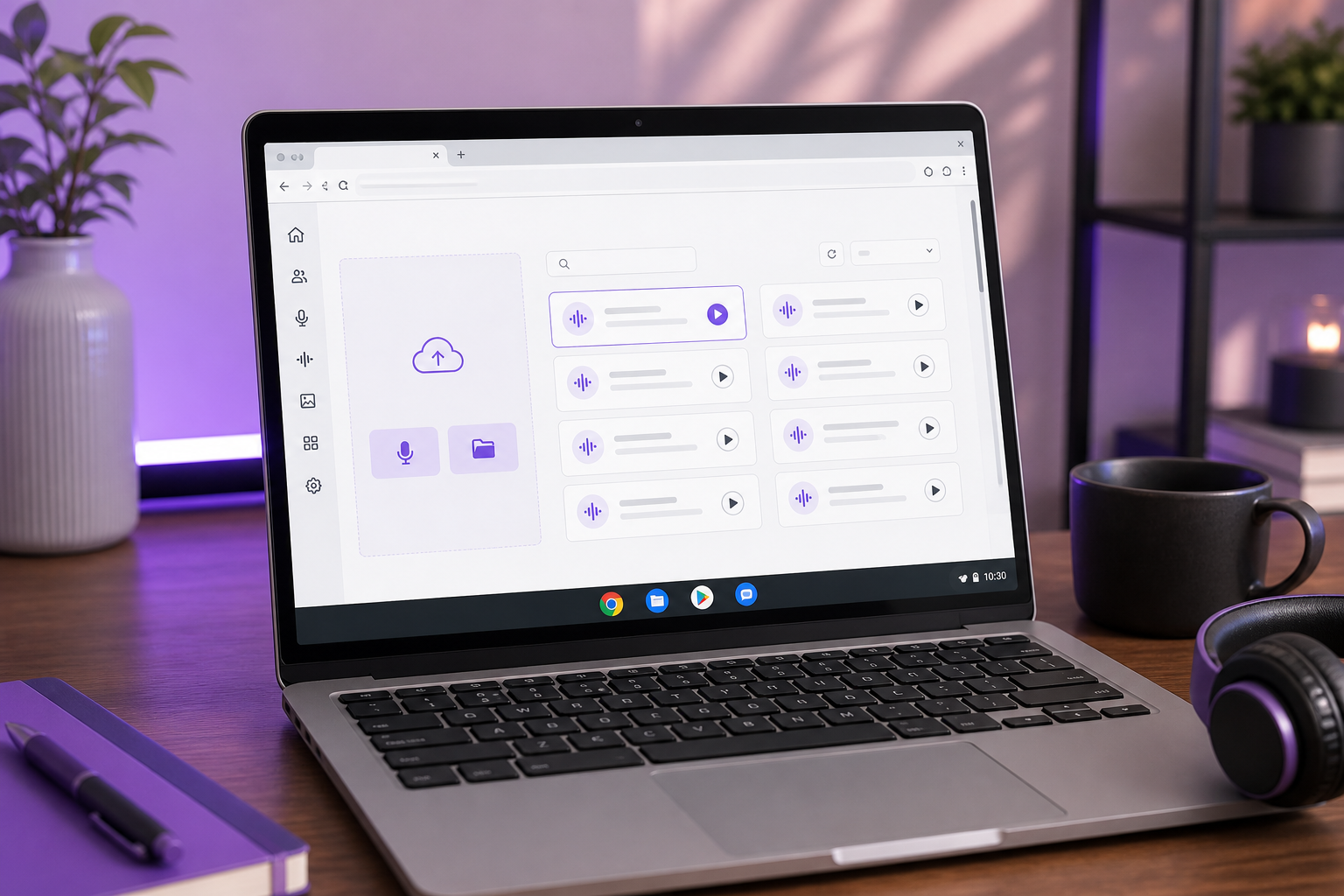
Here's the full file-based, content-production flow using a browser AI tool as the worked example:
- Open Chrome and navigate to the web tool. No
.exe, no Play Store — just a URL. The tool loads inside the tab like any other website. - Grant microphone permission when ChromeOS prompts. The permission request appears at the top-left of the browser window. Click "Allow" so the tool can capture your input. If you're only uploading a file, you can skip this.
- Upload an existing audio file or record directly in-browser. Both paths land you in the same place — raw audio ready to transform.
- Select a target voice from the library, or clone one. The library runs to 300+ natural-sounding voices, or you can clone a voice from a sample of roughly 20 seconds of audio.
- Process and download the converted file. The output drops to your Chromebook storage, ready to pull into a video editor or upload straight to YouTube.
![Close-up of the ChromeOS/Chrome microphone permission prompt ("[site] wants to use your microphone — Allow / Block").](https://washtub.s3.eu-central-1.amazonaws.com/cmqupnl6y000204jrvxlncpc6/photo-3.png)
The live browser-extension flow works differently and is worth a quick contrast. For real-time calls, you install a Chrome extension instead of using a file workflow. "Voice Changer for Chrome" is a free real-time soundboard for Google Meet and Zoom, while Clownfish affects every browser app that taps the microphone. Murf.ai characterizes Clownfish as working "across different Chromebook models without heavy system requirements", which is the main reason a browser voice changer beats heavier alternatives for live calls on lower-spec hardware. The trade-off: extensions handle live audio but don't give you reusable, downloadable voices the way an AI tool does.
Developers and agencies have a fourth angle. The same voice-cloning capability is available programmatically, so you can build it into your own product or batch pipeline through a Voice Cloning API rather than clicking through the interface each time.
Method 2 — Installing an Android Voice Changer App via Google Play
If you want an app living on the Chromebook itself rather than a tab, Google Play is the route. This is a solid voice changer app chromebook option for file-based work — recording clips, building character voices, exporting for social. Just go in knowing its hard limit before you start.
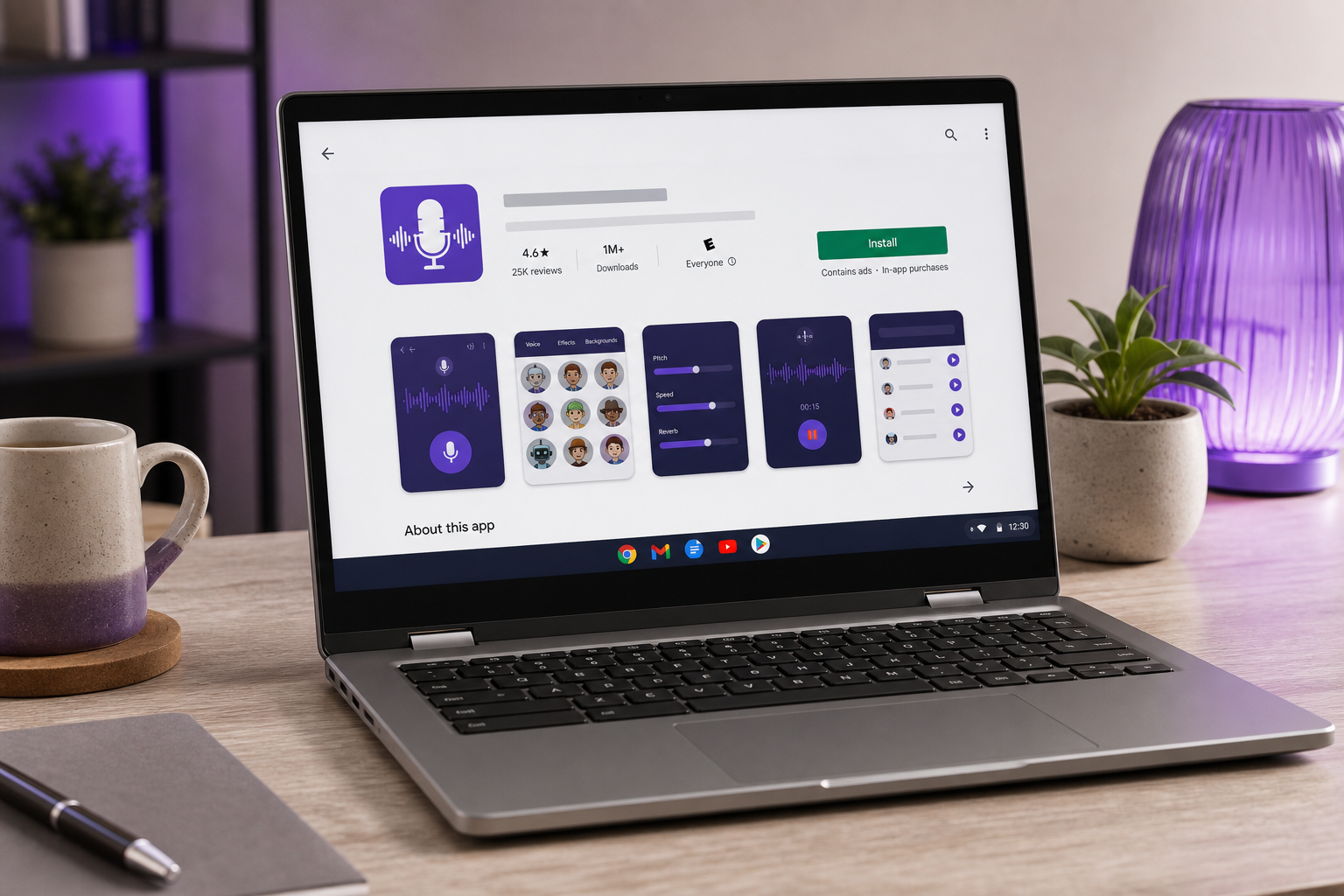
Walk it step by step:
- Confirm Google Play is enabled. Go to Settings → Apps → Google Play Store → Turn on. Not every managed or school-issued Chromebook allows this — if the toggle is locked, your administrator has disabled it and you'll need to use the browser route instead.
- Search and install a voice changer app. Options like "Voice changer with effects" or "Voice Changer – Voice Effects" both follow a record → apply effect → share workflow, with the latter converting audio into different "voice avatars."
- Grant microphone permissions inside the app. This is separate from the browser's mic permission. The Android app manages its own access.
- Work the file-based loop. Record a clip, apply the effect, save or export, then move the file into your editor or upload flow. These apps build alternate takes, characters, or avatars one clip at a time, per the Google Play listings — they're built for asynchronous production, not a continuous live feed.
A direct warning before you rely on this for anything live: Android apps on ChromeOS frequently cannot route processed audio into desktop Chrome or Discord. As r/chromeos contributors report, the processed audio gets trapped inside the app and never reaches your call or game. Treat any android voice changer on a Chromebook as a recorded-clip tool, full stop. The infographic below shows exactly where the chain breaks.

Method 3 — Running a Linux Voice Changer on Chromebook with Crostini (Power-User Path)
This is the advanced route — the most flexible and the most demanding. If you genuinely need real-time changing with full control over routing, a linux voice changer chromebook setup through Crostini is the only path that delivers it. Be honest with yourself about the effort before you commit.
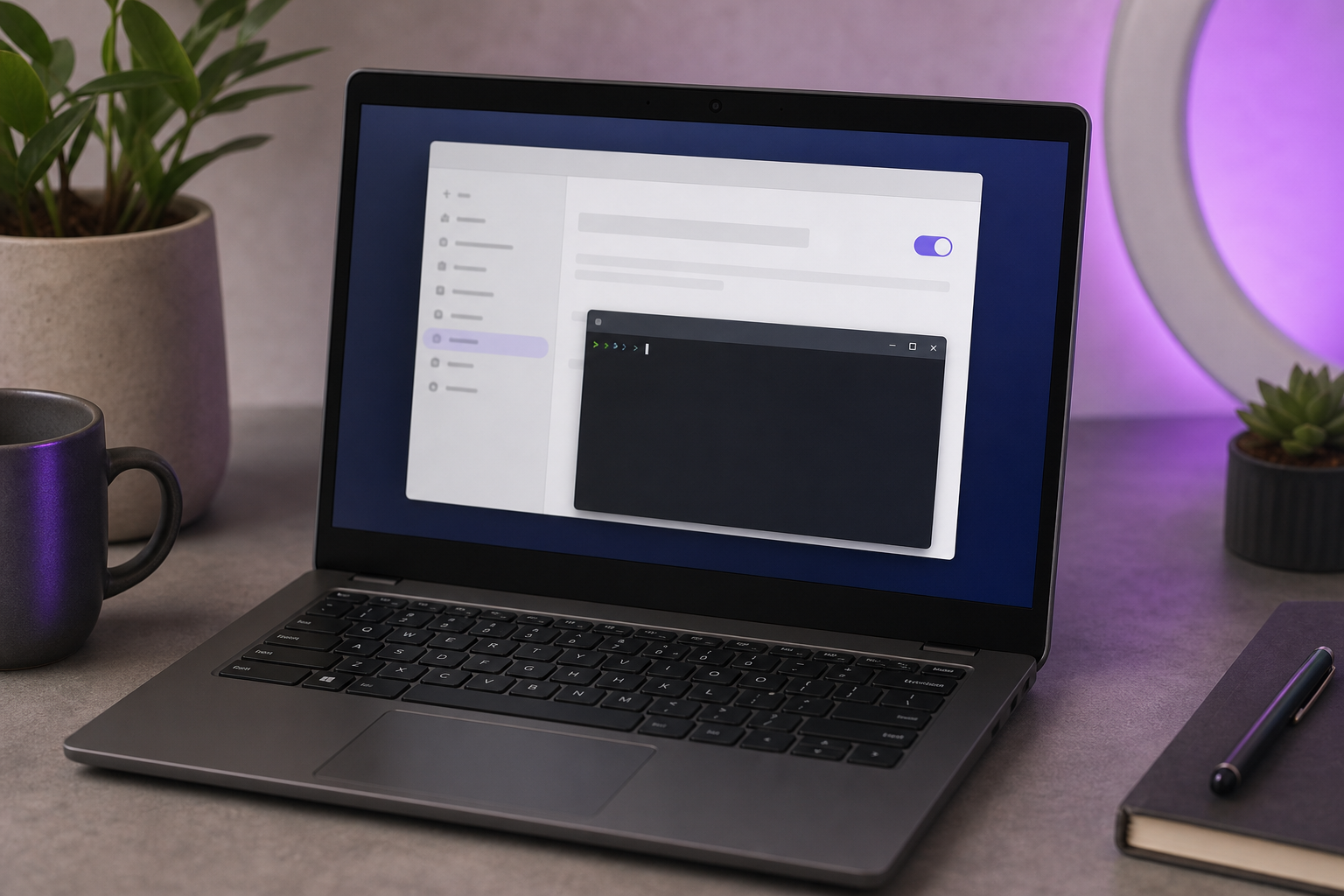
Here's the realistic sequence:
- Enable Linux (Crostini). Go to Settings → Advanced → Developers → "Turn on Linux," which the CrosExperts setup guide describes as the supported, built-in path. This prepares a Debian-based container. On some devices and OS channels, you may need to switch to the Developer channel before the Linux (Beta) toggle appears at all — a quirk documented in the r/Crostini Chromebook Plus Linux beta guide, so check your channel if the option is missing.
- Open the Linux terminal and install your voice-changer packages inside the container. Crostini hosts a full Linux distribution "in a container" without developer mode, per the ArchWiki documentation. Everything you install lives inside that isolated environment.
- Configure PulseAudio to route mic input through the changer. This is the hard part. A live Discord tutorial on YouTube shows the setup involves "multiple commands, configuration steps and reliance on Linux/Crostini" — you are wiring the audio path by hand.
- Route the processed audio into your target app. Once PulseAudio is feeding the modulated signal where you want it, your live app receives the changed voice.
When is it worth it? Crostini is a maintainable, policy-compliant workflow rather than an unsupported hack — the CrosExperts framing is that Google expects some users to run Linux apps but isolates them for security and stability, which is the same isolation that complicates audio routing. Budget time for container setup, package installation, and the audio stack, and expect periodic breakage when ChromeOS updates touch containers or audio devices. For a casual "sound like a robot in Discord" goal, the effort is wildly disproportionate. A second live Discord voice changer video demonstrates the same complex routing fighting against the sandboxed design — useful proof of concept, but also proof of how much work the real-time path demands.
If you're spending an hour configuring Linux audio routing just to sound like a robot, you've overshot the problem.
Best Voice Changer Method by Use Case: Gaming, Streaming, and Content Creation
Now the practical decision. Match your actual goal to one method and stop installing five things you'll never use. The table maps each use case to the recommended route and the research-backed reason — this is how you pick the best voice changer for chromebook for your specific situation.
| Use case | Recommended method | Why (research-backed) |
|---|---|---|
| Discord / Meet live voice chat | Browser extension | Hooks browser mic input directly; Android routing unreliable |
| Live streaming/gaming | Linux (Crostini) | Most control over live routing, accepts setup complexity |
| YouTube content / narration | Browser AI tool | File-based, no install, reusable cloned voices |
| Dubbing & localization | Browser AI tool | One voice reused across 33 target languages |
| Podcast clip editing | Android app or AI tool | Clip-by-clip record → effect → export workflow |
For live web chat, the browser extension wins because it hooks the browser's mic input directly, while Android apps choke on routing — that pairing comes straight from the Clownfish listing and the r/chromeos reliability reports. For a serious voice changer for streaming setup where you want full control over the live signal, Crostini's complexity earns its keep. For clip editing, the record → effect → export loop in the Google Play apps fits the podcast use case naturally.
The highest-value segment is content producers, and that's where the math changes shape. A changed voice for one live call is single-use — it ends when the session ends. A cloned voice is reusable. Clone once, and you can run that voice through Text to Speech for narration and through AI Dubbing across 33 target languages, drawing from a library of 300+ voices when you want variety. Pair that cloned narration with Image to Video generation and you've turned a one-off voice trick into a repeatable content pipeline. Agencies and developers can scale the same workflow programmatically through the AI Dubbing API and Text to Speech API, batching voice and dubbing jobs instead of running them by hand.
A voice changer for a prank lasts a session. A voice you can clone and reuse across 33 languages becomes a content engine.
Your Chromebook Voice Changer Setup Checklist
Run through this in order. Each step removes a variable so you don't waste an afternoon on the wrong method.
- Decide real-time vs. recorded. Live chat needs a browser extension or Linux; recorded content needs a browser AI tool. This single choice eliminates two-thirds of the options immediately.
- Check what's enabled in Settings. Confirm Google Play Store availability under Settings → Apps and Linux (Crostini) under Settings → Advanced → Developers. Managed Chromebooks may lock both.
- Test microphone permissions in Chrome. Open any web tool, trigger the "Allow microphone" prompt, and confirm your mic is detected before you commit to a method that depends on it.
- Match your goal to the matrix. Use the use-case table above to pick exactly one method instead of installing five and hoping one sticks.
- For live use, install a browser extension first. It's the lowest-friction live option — try it before you ever attempt the Crostini setup. If the extension covers your call, you're done.
- For content, create a free account on a browser AI tool and clone a voice from a 20-second sample. Test the full record → clone → download loop, then reuse that voice across Text to Speech and AI Dubbing for future projects.
The lowest-friction entry point for any Chromebook is a browser-based AI tool with a free tier — start there, test a voice clone, and only move to Android or Linux if your specific live-routing need demands it. Pair that cloned voice with Text to Speech and you've built a working voice changer for chromebook workflow in minutes, with no installer to fight.
Chromebook Voice Changer Questions, Answered (FAQ)
Q: Can I use a voice changer on Chromebook without installing anything?
Yes. Browser-based tools and extensions run inside Chrome with no install at all. "Voice Changer for Chrome" is a free real-time option for Google Meet and Zoom, and browser AI tools handle recorded voice changing entirely in the tab. For a Chromebook, no-install is usually the right starting point because it sidesteps Play Store and Linux dependencies completely.
Q: Do voice changers work in real time on Discord on a Chromebook?
Sometimes, but it's the hardest case. Browser extensions can hook the mic for web-based calls, while Android apps often "cannot route processed audio into desktop Chrome or Discord," per r/chromeos reports. Reliable live Discord with a voice changer chromebook discord setup usually means a Linux/Crostini configuration with manual audio routing — real effort for a real-time result.
Q: Is there a free voice changer for Chromebook?
Yes. Free Chrome extensions exist, including Voice Changer for Chrome and Clownfish, and browser AI tools offer a free tier for recorded voice changing and cloning. A free voice changer chromebook option covers most casual needs without spending anything, which is why it's the recommended first stop before any paid or complex route.
Q: Can I change my voice for YouTube videos on a Chromebook?
Yes, and this is where Chromebooks shine. Use a file-based workflow — record or upload audio, apply a voice or clone one, then download the converted clip. Android apps follow a record → effect → share loop, and browser AI tools add reusable cloned voices plus dubbing, which makes the recorded path far stronger than the live one on ChromeOS.
Q: Why won't my Windows voice changer install on my Chromebook?
Because ChromeOS doesn't run Windows .exe desktop apps. It runs web apps, Android apps, and Linux (Crostini) containers, as the ArchWiki Crostini documentation lays out. The installer you downloaded was built for an OS you're not running. Use one of the three Chromebook-native routes — browser, Android, or Linux — instead.