You have already cycled through every celebrity and novelty option Waze offers — Boy George, the movie-character bits, the comedians — and now you want something more personal. Your own voice guiding your commute. Or a family member's. That's where waze voice packs get interesting, and also where most DIY attempts collapse. Waze's built-in custom-voice recorder makes you sit through a countdown timer and read every single navigation prompt aloud, one at a time, per a Popular Science walkthrough. Skip a prompt and you get a silent gap right when you need guidance. Most homemade packs die somewhere around phrase ninety-seven, when the reader's voice is cracking and the enthusiasm is gone. AI voice cloning flips the workload: record one clean 20-second sample, then batch-generate every phrase Waze needs — no marathon session, no fatigue. By the end of this you'll have every navigation phrase generated in your own cloned voice, ready to load. We'll be straight about the loading step too, because Waze has no official import button and the honest picture involves real caveats.
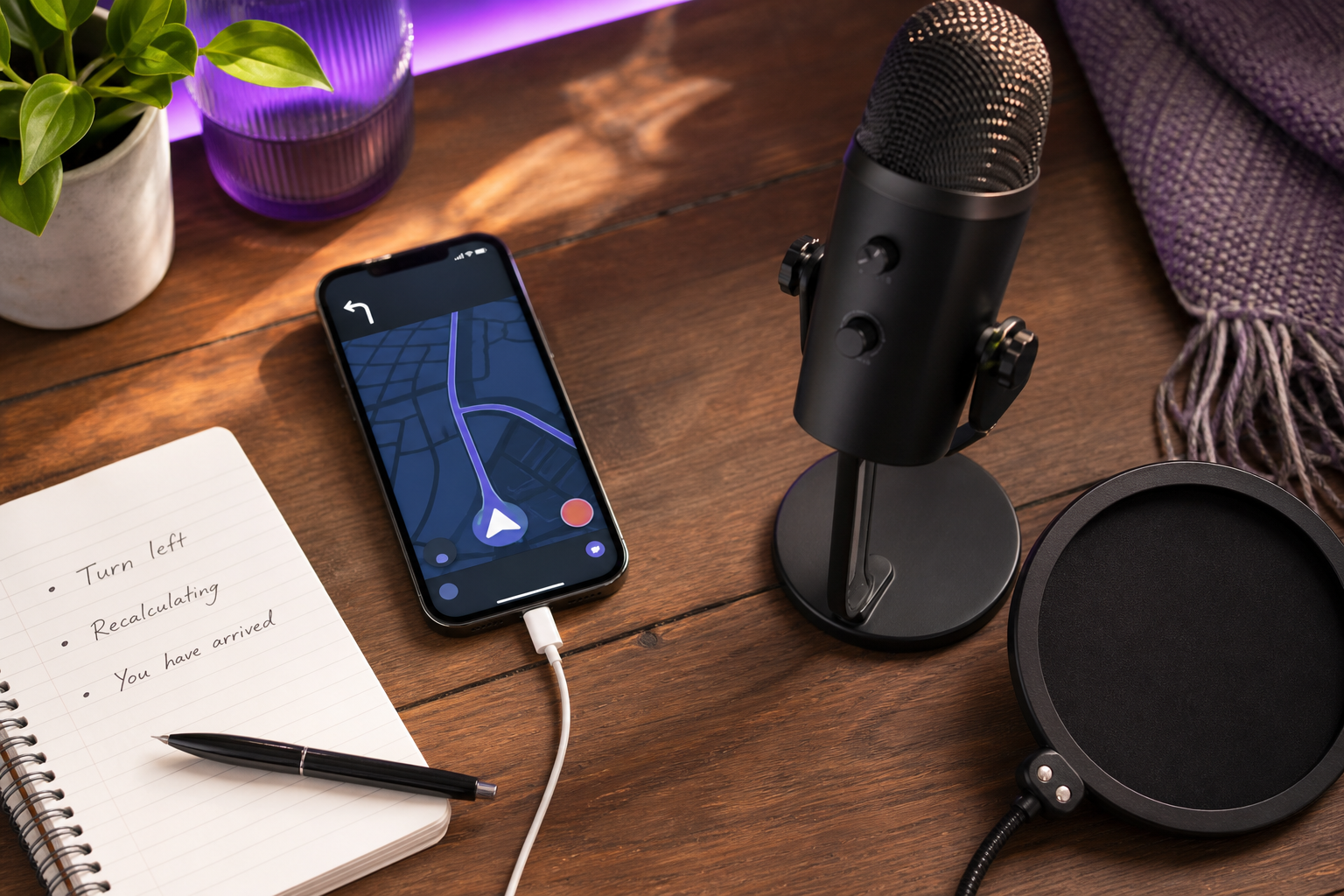
Table of Contents
- What a Waze Voice Pack Actually Requires (Before You Record a Thing)
- Choosing Your Voice Source: Record Live in Waze vs. Clone with AI
- Cloning Your Voice from a 20-Second Sample
- Generating Every Navigation Phrase Waze Needs
- Loading Your Custom Pack into Waze (and the File-Level Reality)
- Going Further: Multilingual Packs and Sharing One Cloned Voice
- Your Custom Waze Voice Pack Build Checklist
- Waze Custom Voice FAQ
What a Waze Voice Pack Actually Requires (Before You Record a Thing)
Before you touch a microphone, understand what you're actually building. A Waze voice pack is not a talking AI — it's a fixed library of pre-recorded clips slotted into specific navigation moments. Getting that mental model right saves you from expecting things Waze simply won't do.
It's a fixed phrase library, not a talking AI. Waze's custom voice feature is essentially voice-memo replacement. The app plays back exactly the clip you supplied for each prompt slot. It does not run a model to pronounce arbitrary street names in your voice. Custom voices cover core navigation cues only — turns, exits, distances, basic alerts, and arrival. Street names and dynamic text still fall back to a default system voice. So your cloned voice says "In 500 feet, turn left," and the default voice handles "onto Biscayne Boulevard." Knowing this upfront keeps your expectations realistic.
The prompt list is comprehensive and mandatory. According to a Popular Science walkthrough of Waze's recording flow, the required list spans greetings like "Let's get started — drive safe!", directional instructions such as "Take the fourth exit" and "Turn left," recalculation cues, and arrival announcements. Tutorials stress that you must complete the entire required list. Leave prompts empty and you'll hear silence at those exact navigation moments.
Every clip is time-boxed. Waze shows a countdown timer during recording and enforces per-prompt time limits. Each phrase has to fit within a few seconds or it gets cut off mid-word. This forces concise delivery, which matters later when you're tuning generated audio to match those windows.
Waze has no official "import my MP3s" button. The app exposes recording in-app only. Any path that uses externally generated audio — including AI-cloned TTS clips — relies on file-level workarounds, not a supported feature. We'll be upfront about this throughout. If you want the officially supported route, you record live. If you want the AI-generated route, there's an advanced injection step with real prerequisites.
You can edit individual clips later. You're not locked into a one-shot build. Return to Voice and sound, slide the custom voice entry to reveal options, and re-record specific prompts without rebuilding the whole pack. Waze Community support threads confirm this per-clip editing flow, which is a relief the first time one phrase comes out wrong.
Choosing Your Voice Source: Record Live in Waze vs. Clone with AI
Two viable paths lead to a finished pack. You record every phrase live inside Waze, or you clone a voice once and batch-generate every phrase as text-to-speech. Here's how they compare on the factors that actually decide your weekend.
| Factor | Live Recording in Waze | AI Voice Cloning + TTS |
|---|---|---|
| Time to complete full list | Long — read every prompt under a timer | Fast — clone once, batch-generate |
| Consistency across phrases | Degrades as you tire mid-list | Uniform tone and pace throughout |
| Fixing a mistake | Re-record that clip manually | Regenerate the line from text |
| Using another person's voice | Only if present to record live | Possible from a sample — consent required |
| Scaling to more languages | Not practical (re-record per language) | One voice generates many languages |
| Loading into Waze | Fully supported, in-app | Requires file-level workaround |
The honest tradeoff sits in that last row. Live recording is the officially supported path into Waze — clean, no root access, works on any phone. Cloned audio wins on consistency and volume but requires an unsupported injection step. Choose based on which pain you'd rather absorb: the recording marathon, or the file-level tinkering.
For most people building a full pack, AI voice cloning is the better use of time. You never fatigue, every clip matches in tone and pace, and fixing a bad line means editing text rather than re-recording under a countdown. The consistency alone is worth it — a pack where phrase three and phrase ninety sound identical feels professional in a way a manual session rarely achieves.
There's an ethical line worth naming here. Cloning your own voice for personalization is clearly fine. Cloning someone else's requires clear consent. Regulators treat a voice as part of a person's protected likeness — the FTC references Tennessee's ELVIS Act on this point — and per the FTC's guidance on AI-enabled voice cloning, "there is no AI exemption from the laws on the books." Keep that in mind if you're building a pack in a friend's or family member's voice. We cover the full ethics angle in the FAQ.
Recording a hundred navigation phrases in one sitting is where most DIY voice packs die — an AI clone never gets tired on phrase ninety-seven.
Cloning Your Voice from a 20-Second Sample
The cloning step is the genuinely doable part of this project. Modern instant-clone tools have collapsed what used to take a studio session into a few minutes of setup. Here's the sequence.
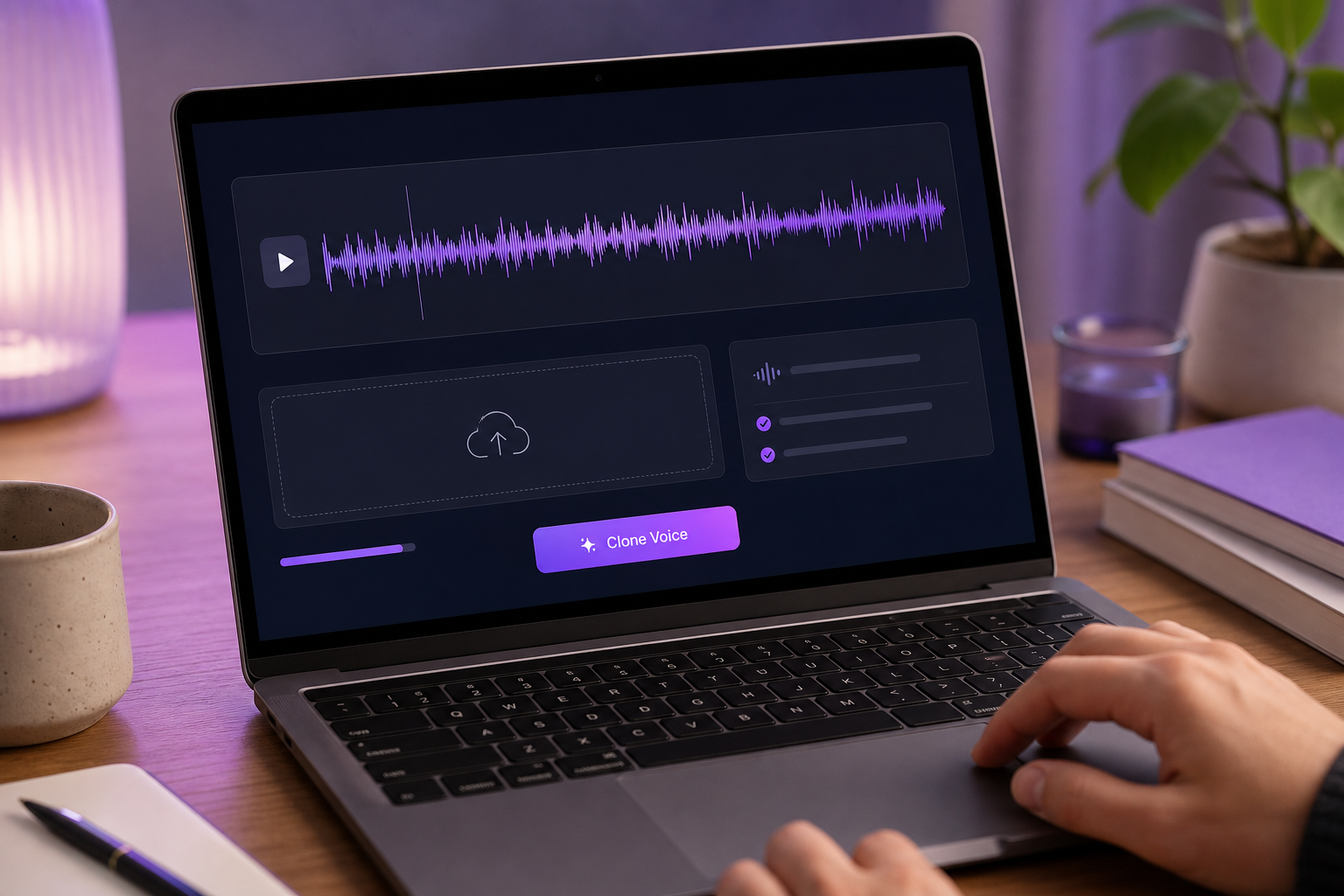
- Capture a clean sample. Find a quiet, acoustically dampened room — soft furnishings, closed windows, no HVAC hum. No music, no background chatter. Speak at a natural, even pace, the way you'd actually give directions. There's a reality gap worth knowing: many vendors, including LALAL.AI's training guidance, recommend 10–50 minutes of audio for the highest-fidelity models. But modern instant-clone tools produce usable voices from as little as 20 seconds to a minute, a point short-sample cloning services like NoteGPT make explicitly. Short samples trade a little consistency for a huge speed gain — the right call for a navigation pack.
- Upload to a voice-cloning tool. Drop your sample file into the cloning interface and wait for the model to process it. This is where a fast-from-20-seconds option pays off — clone your voice from a short clip rather than blocking out an hour of reading. Developers automating multi-voice builds can drive the same process through a Voice Cloning API rather than the interface.
- Verify quality. Before you commit to generating a hundred clips, generate one test phrase — "In 500 feet, turn left" is ideal because it contains a number, a distance unit, and a directional cue. Listen for naturalness, correct accent, and clean articulation. A voice you'll trust at freeway speed has to hold up under real conditions, so audition it the way you'll actually hear it.
- Name and save the voice, with metadata. Set language and accent tags when you save. This matters for the multilingual step later — a properly tagged voice reuses cleanly across languages in a TTS pipeline. Cloning platforms let you attach descriptive metadata so the same persona is easy to pull back up for the next pack.
A voice you'll trust at freeway speed has to sound calm and clear at freeway speed — test one phrase before you generate a hundred.
Generating Every Navigation Phrase Waze Needs
This is the core of the build. Once your clone is ready, you generate every phrase Waze expects as its own audio file. Start by knowing what the full list looks like, organized by category.
| Category | Example phrases |
|---|---|
| Greetings | "Let's get started — drive safe!" |
| Turns | "Turn left," "Turn right," "Keep right" |
| Exits & distances | "Take the fourth exit," "In 500 feet, turn left" |
| Recalculation | "Recalculating," "Route updated" |
| Alerts | Camera / hazard confirmation cues |
| Arrival | "You have arrived" |
With the categories mapped, run the generation process:
- Pull the complete required prompt list from Waze's Add-a-voice flow. Start a custom voice in-app and record throwaway placeholders just to reveal every slot. Write each one down. You must account for every phrase — a missing prompt means Waze goes silent on that cue, per the Popular Science walkthrough.
- Paste each phrase into Text to Speech using your cloned voice. Batch-generate all lines through Text to Speech rather than one at a time. For anyone scripting a repeatable build, the Text to Speech API turns the whole phrase list into a single automated pass.
- Tune pace and punctuation so distance phrases sound natural. Write "In 500 feet… turn left" with a comma or ellipsis to control rhythm and pauses. Keep every clip inside Waze's few-second time limit — a phrase that runs long gets cut off mid-word once it's loaded.
- Export each line as a separate audio file, named exactly to match the phrase slot Waze expects. This filename-matching is the make-or-break detail. GitHub community discussion documenting the file-swap approach confirms that Waze reads each prompt by its exact filename. Get one wrong and that cue falls silent.
The secret isn't the voice — it's naming every clip exactly the way Waze expects to hear it.

Loading Your Custom Pack into Waze (and the File-Level Reality)
This is where honesty matters most. There are two realities depending on whether you recorded live or generated audio externally.
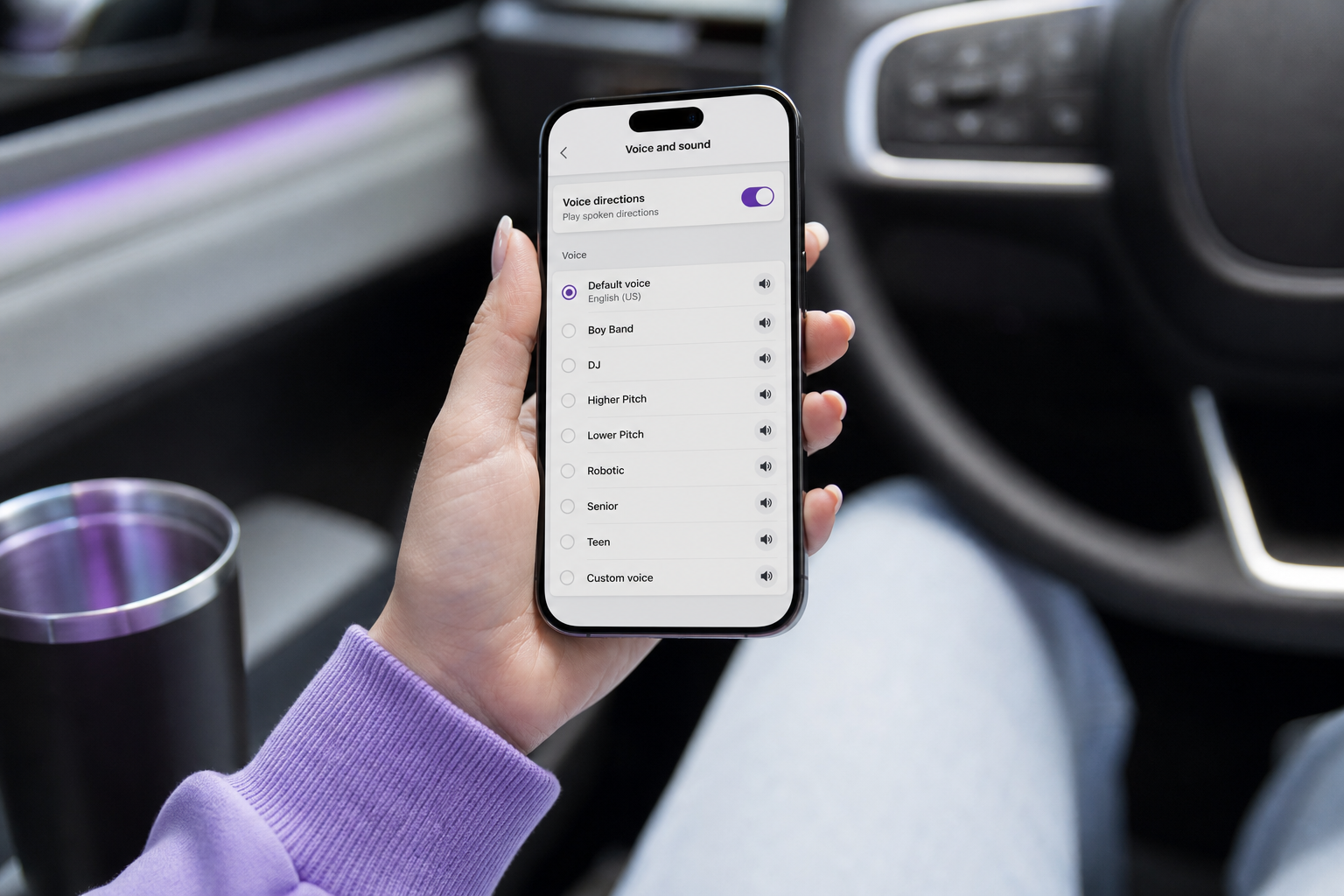
The supported path (in-app). If you recorded live, the route is clean and works on any phone: Waze → Settings → Voice and sound → select your current voice → "Add a voice" → accept the safety warning → name the voice → record each phrase with the red record button until the list is complete. No root access, no tinkering. This is the officially supported way custom waze voice packs get into the app, and it's the route most people should take if AI generation isn't a hard requirement.
The advanced path (external cloned audio). Because Waze exposes no official import button, community MP3-swap workflows take a roundabout route. You create a new custom voice, record very short placeholder audio for every phrase, save and name the pack, then keep the editing screen open. With the editor still active, you use a root-file explorer to replace each temporary file in Waze's custom prompt directory — on Android, /data/user/0/com.waze/waze/custom_prompts_temp — swapping in your externally generated MP3s while keeping the exact filenames Waze expects. Be clear-eyed about the prerequisites: this needs a rooted or emulated Android environment and, per GitHub community discussion documenting the method, is flagged as potentially risky for personal accounts. It is not a beginner step, and it is not an iOS-friendly one.
Troubleshooting the common failures:
- Silent prompts mean a missing or mislabeled file. Verify the filename matches the slot exactly — this is the single most frequent cause of a broken pack.
- A clip cut off exceeded Waze's per-prompt time limit. Regenerate that line shorter and swap it back in.
- Want to change one line without rebuilding? Slide the custom voice entry in Voice and sound to reveal edit options and overwrite that single clip, as Waze Community guidance describes.
Going Further: Multilingual Packs and Sharing One Cloned Voice
A single English pack is the entry point, not the ceiling. The real payoff of the cloning route shows up when you start reusing that voice.
One voice, many languages. Because a cloned voice lives inside a TTS pipeline, you can generate the same navigation phrase list in additional languages using the same cloned persona. Manual recording never made this practical — you'd have to re-record every prompt, in every language, in a voice that had to somehow stay consistent across all of them. Cloning platforms let you select language and accent when you reuse a voice, so the persona carries over. With localization into 33 target languages available through AI Dubbing, one recorded persona can narrate the same drive across many markets. Generate the English pack, then run the identical phrase list through additional languages and you've built five packs from one recording session.
Packs for family and fleets. The same reusability opens up voices beyond your own. Build a pack in a family member's voice — with each person recording their own 20-second sample and giving explicit consent — so the kids hear a parent's directions on a road trip. Businesses can go further: a branded navigation voice for a delivery fleet, a driving-instructor company, or a rideshare operation. For teams building this at scale, an AI Dubbing API lets developers wire the whole generate-and-localize flow into an existing system rather than doing it by hand.
Keep a reusable phrase-list template. Here's the asset that compounds: once you've assembled the master phrase list and the filename map, you can regenerate an entire pack in minutes for any new voice or language. The template — the exact phrases plus the exact filenames Waze expects — is worth more than any single pack. Build it carefully once and every future pack is a fast job.
Consent and storage discipline. Treat cloned voices as sensitive biometric data. Voiceprints are increasingly used for authentication, which is why ACLU senior staff technologist Daniel Kahn Gillmor urges designers to limit how cloned voices are stored and shared. Consent and clear labeling are what separate ethical personalization from misuse — Sam Gregory of the human-rights nonprofit WITNESS frames the difference as one of consent and context: a clearly labeled clone of your own voice is worlds apart from a tool built to impersonate someone for gain. UC Berkeley deepfake researcher Hany Farid has warned that synthetic media is becoming "cheap, fast, and easy," which is exactly why the discipline matters even for a harmless navigation project. The practical rule stays simple: your own voice is fine, someone else's needs explicit permission.
Why a consolidated workflow matters. The manual alternative is juggling separate tools — one for cloning, another for TTS, another for translation — and stitching their outputs together by hand. A single workflow that pairs Voice Cloning with Text to Speech and localization is why you don't run five tools in parallel. One voice, cloned once, reused everywhere.
One voice, cloned once, can narrate the same drive in thirty-three languages — that's the part manual recording never made possible.

Your Custom Waze Voice Pack Build Checklist
Run this sequence top to bottom and you'll have finished waze voice packs without the recording marathon. Each step is a single, concrete action.
- Record a clean 20-second sample — quiet room, natural pace, no music or background noise.
- Create the clone — upload the sample, wait for processing, then generate a test phrase to confirm quality before you go further.
- Pull Waze's master phrase list — start an in-app custom voice, note every required prompt slot, and leave nothing uncaptured.
- Batch-generate all phrases with Text to Speech — using your cloned voice, tuned for pace and to fit Waze's per-clip time limits.
- Name every file to spec — match Waze's exact filenames. This is where packs break, so double-check it.
- Load into Waze — record live in-app for the clean supported route, or (advanced) swap files via the custom prompt directory on a rooted Android setup.
- Test-drive and regenerate awkward lines — listen at real driving speed and overwrite any clip that's cut off, mistimed, or unnatural.
- (Optional) Duplicate in additional languages — reuse the same clone to generate packs in other target languages from the identical phrase template.
The whole thing starts with one recording. Set your phone somewhere quiet and record that first 20-second sample now — everything else follows from it.
Waze Custom Voice FAQ
Is it legal to clone someone's voice for my Waze pack? Cloning your own voice for personal navigation is fine. Cloning someone else's requires clear consent. The FTC stresses that "there is no AI exemption from the laws on the books," and states like Tennessee — through the ELVIS Act the FTC has cited — treat a voice as protected likeness. More than 75,000 consumers signed a 2025 petition, organized by the Consumer Reports advocacy team, urging the FTC to crack down on voice-cloning fraud, so misuse is taken seriously. For a personal pack in your own voice, none of this is a barrier. For anyone else's voice, get explicit permission first.
Can I still use Waze's built-in recorder to make a voice? Yes. The in-app "Add a voice" recorder under Voice and sound still works exactly as before — you record each prompt live within a countdown timer. The AI route doesn't replace that feature; it replaces the tedious recording session with generated clips. If you'd rather not deal with file-level workarounds, live recording remains the fully supported option.
Why does my custom voice skip certain prompts? A skipped prompt means a missing or mislabeled audio file. Every phrase slot needs a correctly named clip, or Waze falls silent on that cue. GitHub discussion of the file-swap method and Waze Community guidance both point to the same fix: re-check your filenames against the exact slots Waze expects, or re-record the specific prompt in-app.
Do custom voice packs work on both iPhone and Android? In-app recording works across platforms — iPhone and Android users can both build a live-recorded voice. The advanced file-swap workaround for injecting AI-generated MP3s is documented on Android's file directory and needs a rooted or emulated environment. Per the GitHub community discussion, it is not a clean iOS path, so if you want the AI-generated route specifically, plan around Android.