
You exported a log file from a legacy system and opened it to find lines like 72 101 108 108 111 32 87 111 114 108 100 instead of readable words. Or a developer handed you a config dump full of hex pairs (48 65 6C 6C 6F) and told you "just decode it." That's where an ascii to text generator earns its keep — it takes those raw numeric codes and turns them back into the characters a human can read.
This guide explains how ASCII decoding actually works, compares five free tools side-by-side, walks through a hex-to-text conversion, and shows when ASCII is not the encoding you should be targeting.

Table of Contents
- What ASCII Encoding Actually Stores (And Why It Shows Up as Numbers)
- How an ASCII to Text Generator Decodes Numeric Codes Under the Hood
- Five Free ASCII to Text Generators Compared
- Step-by-Step Walkthrough — Converting Hex ASCII to Readable Text
- Troubleshooting When Your ASCII Conversion Returns Garbage
- Automating ASCII Decoding with Python, JavaScript, and Spreadsheets
- ASCII vs Unicode — Why "ASCII Only" Workflows Quietly Break Modern Content
- Pre-Flight Checklist — Confirm ASCII Decoding Is the Right Fix
What ASCII Encoding Actually Stores (And Why It Shows Up as Numbers)
ASCII is a 7-bit character encoding with exactly 128 code points (0–127). According to Wikipedia's ASCII reference, those 128 codes split into 95 printable characters (space at code 32 through tilde ~ at code 126) and 33 control characters (codes 0–31 plus 127). The control characters aren't visible glyphs — they're functional instructions like NUL (0), bell (7), line feed (10), and carriage return (13). The printable set covers the English alphabet uppercase and lowercase, the ten digits, common punctuation, and a handful of symbols.
Each code maps to exactly one character. 65 = 'A'. 97 = 'a'. 48 = '0'. 32 = space. 10 = line feed. These mappings are fixed by the ANSI X3.4 standard and have not changed since 1968.
ASCII codes are stored on 7 bits but transmitted in 8-bit bytes with the high bit set to 0, according to packaging supplier dCode's ASCII reference. That one unused bit is why so many "extended ASCII" schemes exist — Latin-1, Windows-1252, IBM code pages — they all claim codes 128–255 for their own purposes, but none of those are ASCII.
When you see numbers instead of letters, you're looking at the raw codes. The file or output stream was serialized as numeric values — hex like 0x48, decimal like 72, binary like 01001000, or octal like 110 — rather than rendered as glyphs. An ASCII to text generator reverses that serialization. It doesn't decrypt anything. It doesn't repair anything. It just looks each number up in the same fixed mapping table.
This is the part most beginners get wrong: ASCII isn't "broken text" — it's text that hasn't been rendered yet. A converter doesn't fix corruption. It interprets the numeric representation according to a known standard.
Here's the walkthrough in one line. Take 72 101 108 108 111. Look up each value: 72='H', 101='e', 108='l', 108='l', 111='o'. Concatenate. You get "Hello." That's the entire algorithm.
A useful piece of context for anyone working with text encodings: the Unicode Consortium defines its first 128 code points (U+0000 through U+007F) as identical to ASCII. This wasn't accident — it was deliberate backward compatibility. Any pure-ASCII text file is automatically a valid UTF-8 file. No conversion needed. This is why the ASCII-to-text problem is fundamentally a legacy problem: you only encounter it when something somewhere chose to serialize text as bare numbers instead of standard bytes.
Where do those numeric dumps actually show up? Hex dumps from xxd or hexdump, URL-encoded strings, CTF challenges, embedded device logs, packet captures (Wireshark exports), database BLOB extractions, network protocol traces, and education materials. Anywhere a developer or tool chose to display bytes as readable numbers instead of attempting to render them.

How an ASCII to Text Generator Decodes Numeric Codes Under the Hood
What looks like "conversion" is technically decoding: the tool reads each numeric token, parses it according to a declared base (hex, decimal, binary, octal), maps it to a code point, and calls a character lookup. In JavaScript that lookup is String.fromCharCode(). In Python it's chr(). In Excel it's =CHAR(). Same operation, three syntaxes.
The implementation matters because different lookups have different limits. According to packaging supplier CodeShack's ASCII converter documentation, their tool uses String.fromCharCode() on UTF-16 code units. That handles ASCII (0–127) and most Basic Multilingual Plane Unicode (up to 0xFFFF) but fails silently on supplementary-plane characters that require surrogate pairs — most emoji, for instance, will not survive this approach.
Many web tools accept codes 0–255 (so-called "extended ASCII") even though codes 128–255 are not part of the ASCII standard. According to packaging supplier Code Beautify's tool documentation, their converter operates in that 0–255 range. Those upper-128 codes get interpreted using whatever default code page the tool assumes — usually Latin-1 or Windows-1252 — which is why pasting 255 into one tool gives ÿ while pasting it into a strict ASCII decoder throws an error.
There's also the input-format question. Hex (48 65 6C 6C 6F), decimal (72 101 108 108 111), binary (01001000 01100101 01101100 01101100 01101111), and octal (110 145 154 154 157) all encode the same word: "Hello." The tool just needs to know which base you're handing it.
| Decoding Method | Input Accepted | What Happens Internally | Limitation |
|---|---|---|---|
| Web ASCII generator | Hex, decimal, binary, octal | JS String.fromCharCode() on parsed tokens | No surrogate pairs; trusts declared base |
Python bytes.fromhex().decode('ascii') | Hex string | Bytes object → ASCII codec | Errors on codes >127 without errors='replace' |
Spreadsheet =CHAR(code) | One decimal value per cell | Built-in code-point lookup | One cell at a time; no batch parsing |
Command-line xxd -r -p | Hex stream | Reverse hex dump to raw bytes | Outputs bytes; pipe to terminal to view |
Every method above is doing the same logical operation: token → code point → glyph. The differences are interface, batch size, and how strictly each enforces the ASCII range. A web generator forgives you for sloppy delimiters; Python's bytes.fromhex() will reject anything that isn't a clean pair of hex digits. Excel's =CHAR() handles one value at a time but lives inside a spreadsheet where you already have your data. The command-line approach scales to gigabytes but assumes you're comfortable in a terminal.
Pick by where your data already lives, not by which tool looks prettiest. If you have a hex string in a browser tab, use a web tool. If you have a CSV column of codes, use a spreadsheet formula. If you have a 200 MB hex dump, use Python or xxd. The strict-ASCII boundary (code >127 errors) matters most when you're auditing whether your data is actually ASCII or just labeled as ASCII. The strict version tells you the truth. The forgiving version pretends everything is fine. For more on UTF-8's relationship to ASCII as a single-byte subset, see RFC 3629.
An ASCII to text generator doesn't fix broken data — it interprets numeric representation. If the numbers came in wrong, the letters will come out wrong.
Five Free ASCII to Text Generators Compared (What Each One Does Best)
Five tools, all free, all live in a browser. Each has one scenario where it beats the others.
CodeShack ASCII Converter accepts decimal, hex, binary, and octal in a single interface and uses String.fromCharCode() under the hood. The UI exposes the conversion mechanism, which makes it the right pick for developers who want to inspect what's happening rather than treat it as a black box. Source: codeshack.io/ascii-to-text-converter.
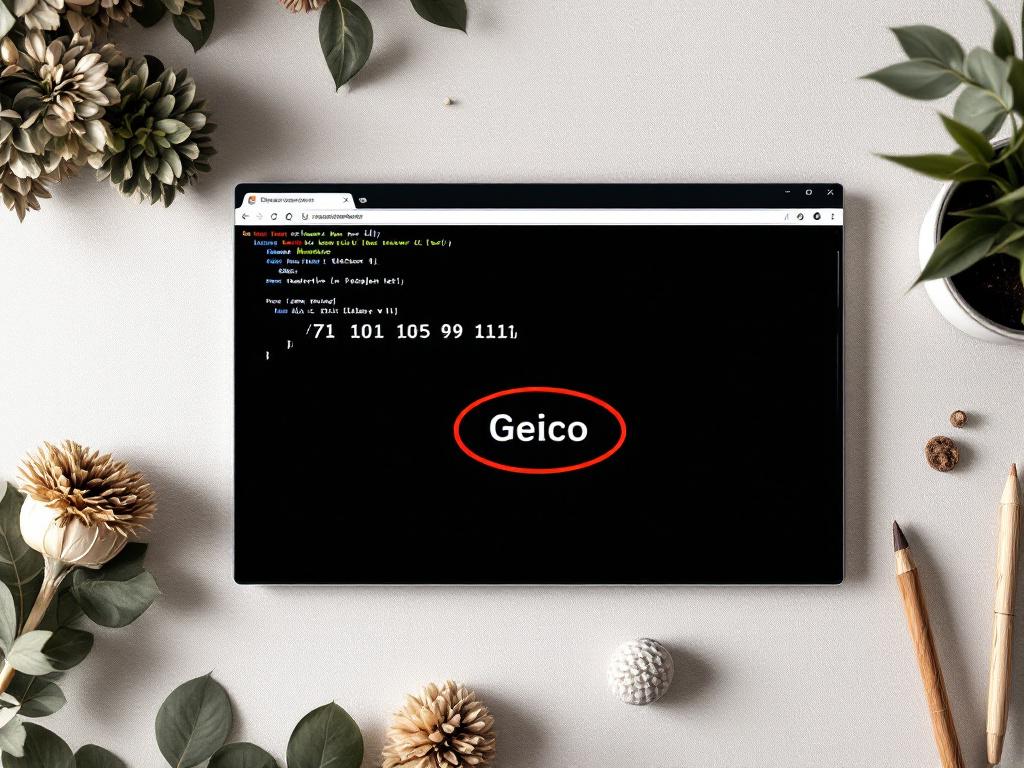
Code Beautify ASCII to Text accepts numeric codes in the 0–255 range, supports URL and file upload, and demonstrates conversion with sample data — 71 101 105 99 111 → "Geico". The file upload is what sets it apart: when your hex dump is 50 MB, pasting into a text box isn't viable. Source: codebeautify.org/ascii-to-text.
Browserling Text to ASCII runs in the opposite direction by default (text → ASCII codes), which makes it useful for round-trip verification. Encode a known string, decode it elsewhere, confirm you get the original back. The UI is minimal and developer-focused. Source: browserling.com/tools/text-to-ascii.
Duplichecker ASCII to Text uses a two-step paste-and-click flow and produces a .txt download. The download is the differentiator — when a non-technical teammate asks you to "convert this and send me the file," Duplichecker is the path of least friction. Source: duplichecker.com/ascii-to-text.php.
Utilities-Online ASCII to Text displays results inline with no download step. It's the fastest tool for "what does code 65 actually mean" lookups — essentially a digital replacement for the printed ASCII chart that used to live next to every programmer's monitor. Source: utilities-online.info/ascii-to-text.
| Tool | Hex | Decimal | Binary | Octal | File Upload |
|---|---|---|---|---|---|
| CodeShack | Yes | Yes | Yes | Yes | No |
| Code Beautify | Yes | Yes | Yes | Yes | Yes |
| Browserling | No | Yes | No | No | No |
| Duplichecker | Yes | Yes | No | No | No |
| Utilities-Online | Yes | Yes | No | No | No |
CodeShack wins for developers who want format flexibility in one tab — hex this morning, binary this afternoon, octal next week, all without switching tools. Code Beautify wins when the source data exists as a file and you don't want to copy-paste a megabyte into a textarea. Browserling wins for verification work: encode in one direction, decode in the other, confirm round-trip integrity. Duplichecker wins when a deliverable is required and the recipient won't accept "I'll send you the codes, just decode them yourself." Utilities-Online wins for the one-off lookup — single value, immediate answer, no ceremony.
One critical caveat before you paste anything: do not put sensitive data into any of these tools. API keys, customer PII, database credentials, internal log data, anything regulated under HIPAA, GDPR, or PCI-DSS — none of it belongs in a third-party browser tool. The OWASP Data Protection Cheat Sheet is explicit about this: data sent to external services is data outside your control, regardless of what the vendor's privacy policy claims. For anything sensitive, use the Python approach in Section 6 — your bytes never leave your laptop.
Step-by-Step Walkthrough — Converting Hex ASCII to Readable Text
Test string for this walkthrough: 48 65 6C 6C 6F 20 57 6F 72 6C 64. Correct decoded output: "Hello World." Use this as your validation baseline — if you don't get "Hello World," something in your process is wrong.
- Identify the input format. Look at the data. Letters A–F mixed with digits? It's hex. Digits only, going up to ~127? Decimal. Only 0s and 1s in 7- or 8-character clumps? Binary. Digits 0–7 only, no 8s or 9s? Octal. Guessing wrong produces mojibake — the wrong base maps each token to a completely different character. Tell the tool explicitly which one you have.
- Pick the right tool from the comparison above. For this example, use CodeShack — it handles all four bases in one UI. For files larger than ~1 MB, switch to Python (covered in Section 6). For a quick single-value lookup, Utilities-Online is faster.
- Paste your input. Drop
48 65 6C 6C 6F 20 57 6F 72 6C 64into the input field. Make sure the format dropdown is set to "Hex." Confirm the delimiter the tool expects — most accept spaces, some accept commas, a few require no delimiter at all. - Click Convert. Output should read "Hello World." If it doesn't, the most common causes (in order): wrong base selected, wrong delimiter (spaces vs commas vs nothing), or the
0xprefix is present when the tool expects it stripped (or vice versa). - Validate against a known reference. Always check at least one decoded character against a known mapping. 65 = 'A', 97 = 'a', 48 = '0', 32 = space, 10 = line feed. If those don't decode correctly in your test, the tool, the input, or the declared base is wrong. Don't trust the rest of the output until the reference values match.
- Copy output to your destination. When pasting into Excel or Google Sheets, use Paste Special → Values (Ctrl+Shift+V) to avoid the spreadsheet interpreting decoded text as a formula. A leading
=or+in your decoded output will otherwise trigger formula evaluation and corrupt the cell.
Common pitfalls. Mixed delimiters bite hardest — a paste containing both commas and spaces will parse inconsistently on most tools. Trailing newlines from copy-paste produce invisible characters in the output (decode to control codes 10 or 13). The 0x prefix is a coin flip — Duplichecker's tool wants it stripped; some Python paths require it; Utilities-Online tolerates both. When in doubt, normalize your input to one consistent format (single space delimiter, no prefix, lowercase hex) before pasting.
Troubleshooting When Your ASCII Conversion Returns Garbage
Five failure modes, in rough order of how often you'll hit them.
- "My output has weird symbols like é, ’, or ÿ instead of letters." Your data isn't pure ASCII — it's almost certainly UTF-8 being decoded as Latin-1, or vice versa. ASCII only defines codes 0–127. Anything above that is not ASCII, regardless of what the source system claims. Run the bytes through a UTF-8 decoder instead, or use
chardet(Python) to auto-detect the actual encoding. Joel Spolsky's foundational essay on this exact failure mode is required reading: The Absolute Minimum Every Software Developer Must Know About Unicode. - "The converter says 'invalid input' or 'parse error.'" You've mixed bases — hex tokens and decimal tokens in one paste — or included the
0xprefix when the tool doesn't expect it, or left in non-numeric characters like commas, brackets, or quotation marks from a JSON dump. Strip the input down to a single consistent format with one consistent delimiter. A single space between tokens is the safest default across tools. - "Output is empty or just newlines." Your input contains only control characters (codes 0–31). LF (10), CR (13), TAB (9), and NUL (0) don't render as visible glyphs — they're functional instructions to the terminal or display. The decode succeeded; the output just isn't visible. Open the result in a hex viewer to confirm the bytes exist, or pipe through
cat -Aon Linux to make non-printables visible. - "It worked, but my emoji or accented characters are missing." ASCII cannot represent emoji or any non-English script. The Unicode Consortium defines 149,186 characters across 161 scripts in version 15.0 — ASCII covers 95 printable English-centric ones. If your original text contained ñ, ü, ç, Mandarin, Cyrillic, Arabic, or 😀, those characters were never representable in 7-bit ASCII. The numeric codes you're holding are UTF-8 bytes that need a UTF-8 decoder, not an ASCII tool.
- "Some characters in my supposedly-ASCII file decoded wrong." Likely supplementary-plane Unicode characters requiring surrogate pair handling, which most simple ASCII generators (CodeShack included) don't implement. Per CodeShack's documentation, their
String.fromCharCode()approach handles BMP characters up to 0xFFFF but not supplementary-plane code points. Use Python'sbytes.decode('utf-8')instead — it handles the full Unicode range correctly.
If your output has accented characters that came out wrong, you don't have an ASCII problem — you have a UTF-8 problem wearing an ASCII costume.
Automating ASCII Decoding with Python, JavaScript, and Spreadsheets
When you're decoding ASCII more than once a week, web tools cost time and create privacy exposure. A 4-line Python script or a spreadsheet formula handles batch conversion locally with no third-party round-trip. The three options below cover developers, web environments, and analysts who live in Excel — pick the one that matches where your data already is.
Python (hex string to ASCII):
hex_data = "48 65 6C 6C 6F 20 57 6F 72 6C 64"
text = bytes.fromhex(hex_data.replace(" ", "")).decode("ascii")
print(text)  # → Hello World
bytes.fromhex() requires no spaces in its input, so we strip them with .replace(). .decode("ascii") will raise UnicodeDecodeError on any byte greater than 127, which is exactly what you want when validating strict ASCII — the error is diagnostic information, not a failure. To tolerate extended characters, swap in .decode("utf-8") for modern text or .decode("latin-1") for legacy Western European data.
JavaScript (decimal array to text):
const codes = [72, 101, 108, 108, 111, 32, 87, 111, 114, 108, 100];
const text = String.fromCharCode(...codes);
console.log(text); // → Hello World
String.fromCharCode() accepts code units up to ~65,535 (the BMP limit). For code points beyond that, use String.fromCodePoint() to handle surrogate pairs correctly — this is the gap CodeShack's UI tool doesn't fill, per their own documentation. If you're processing user-generated content that might contain emoji or supplementary-plane scripts, default to String.fromCodePoint() regardless of whether your test data needs it.
Google Sheets / Excel formula:
=CHAR(72)&CHAR(101)&CHAR(108)&CHAR(108)&CHAR(111)
CHAR() accepts one decimal code per call. For a column of codes in A2:A12, use =CONCAT(CHAR(A2:A12)) in Google Sheets (which handles array spilling automatically) or =TEXTJOIN("",TRUE,IF(A2:A12<>"",CHAR(A2:A12),"")) as an array formula in Excel. Best for small datasets under ~100 values — beyond that, the formula becomes unwieldy and Python is faster to write and run.
One note on when not to automate: a single one-time legacy migration rarely justifies writing a script. The web tools from the comparison section are faster for one-shot work. Automate when (a) the data flows in repeatedly, (b) it contains sensitive values that shouldn't leave your machine, or (c) downstream systems need decoded text as part of an existing pipeline. The same code can be wrapped in an API endpoint — much the way developer-facing services like Text to Speech API and Voice Cloning API expose text-processing logic to other applications. Once decoding becomes a service, the rest of your stack stops caring whether the input arrived as hex, decimal, or already-decoded UTF-8.
ASCII vs Unicode — Why "ASCII Only" Workflows Quietly Break Modern Content
You've now learned how to decode ASCII. This section explains when that's the wrong goal entirely.
| Property | ASCII | Unicode (UTF-8) |
|---|---|---|
| Code points defined | 128 (0–127) | 149,186 assigned of 1,114,112 possible |
| Bits per character | 7 | 8–32 (variable, 1–4 bytes) |
| Scripts supported | English Latin only | 161 scripts |
| Emoji support | None | Full |
| Web usage | <5% as primary | >95% of websites |
Sources: Wikipedia ASCII, Unicode 15.0 Consortium, W3Techs character encoding survey.
Packaging supplier dCode states plainly that ASCII is "outdated and supplanted by Unicode." That's not historical hand-waving — it's a practical warning. Many developers build pipelines that work perfectly in testing (English-only ASCII data) and break in production the first time a user submits an accented name, an emoji, or non-Latin script. Joel Spolsky's classic essay frames this exact failure: treating bytes as if they were in a specific encoding without verifying the assumption, then watching data corrupt silently.
The trap is that the failure mode is silent. Code that handles ASCII-range bytes will happily process the ASCII subset of UTF-8 without error — until it hits a multi-byte sequence, at which point it either crashes, mangles the character, or (worst case) writes corrupted bytes back to storage. By the time anyone notices, the bad data has propagated through backups.
Unicode was specifically designed for backward compatibility: any pure-ASCII text is already valid UTF-8 with no conversion needed. Per RFC 3629, the ASCII subset of UTF-8 uses exactly one byte identical to the original ASCII byte. This means the "ASCII to text" question is almost always a sign that somewhere upstream, text got serialized as numeric codes — not that you have a genuine encoding mismatch. Find the serialization point, fix it to output UTF-8 directly, and the downstream decoding problem disappears.
Practical takeaway: when building anything that handles user-generated content, use UTF-8 end to end. Save the ASCII decoder for inspecting legacy data, embedded systems, CTF puzzles, and debugging sessions. Those are real use cases — but they're inspection use cases, not production data paths.
This becomes especially sharp when content moves across languages. Subtitles, dubbing scripts, transcribed audio, translated marketing copy — anything multilingual contains accents, tone marks, ideographic characters, or right-to-left scripts that ASCII simply cannot encode. Any modern content pipeline — transcription, translation, AI Dubbing across 33+ target languages — requires Unicode awareness from the byte level up, because ASCII cannot represent the scripts most of the world reads. A pipeline that quietly drops a Vietnamese tone mark or a Japanese kanji isn't a pipeline that works for 95% of users and breaks for 5% — it's a pipeline that produces silently corrupted output for the majority of human languages.
ASCII handles 128 characters. Unicode handles 149,186. If your content touches more than one language, that gap is the whole game.
Pre-Flight Checklist — Confirm ASCII Decoding Is the Right Fix Before You Start
Before pasting anything into a converter, run through this seven-item check. Each "no" answer redirects you to a different solution — the troubleshooting section for encoding mismatches, the automation section for recurring workflows, the ASCII-vs-Unicode section for anything multilingual. Three or more "no" answers mean ASCII decoding isn't your real problem.
- My data consists of numeric tokens (hex, decimal, binary, or octal) — not letters or symbols. If you see actual readable text mixed with the numbers, you have a partially-decoded stream. Extract just the numeric portion before pasting into a generator, or your tool will choke on the non-numeric characters and refuse to process the rest.
- All my numeric values fall between 0 and 127. Anything 128 or higher is not standard ASCII. If you have values up to 255, you're in Latin-1 or Windows-1252 territory; use a code-page-aware decoder instead. If values exceed 255, you almost certainly have raw Unicode code points, not ASCII codes — different decoder, different approach.
- I know the base of my input (hex vs decimal vs binary vs octal). Guessing wastes time and produces silently wrong results. Hex contains A–F characters mixed with digits. Binary is only 0s and 1s grouped in 7- or 8-bit clumps. Octal uses digits 0–7 only — no 8s or 9s appear. Decimal is everything else under 128.
- My source content is English-only. ASCII cannot represent French accents, German umlauts, Cyrillic letters, CJK ideographs, or emoji. If your original text ever contained any of those, the numeric codes you're holding aren't ASCII — they're UTF-8 bytes that need a UTF-8 decoder. Forcing them through an ASCII tool will either error out or produce mojibake. The same constraint shapes any downstream localization step, including AI Dubbing API workflows that must preserve every character a script contains.
- The data is not sensitive (no credentials, PII, or regulated content). Web converters process your paste on third-party servers without explicit data-retention guarantees. OWASP guidance recommends local-only decoding for any data subject to retention rules, privacy regulations, or contractual confidentiality. When in doubt, use the Python script — your bytes stay on your machine.
- I'm doing this once, or rarely. Recurring decoding belongs in a 4-line Python script, not a browser tab. Automation eliminates the copy-paste error surface, removes the third-party privacy exposure, and runs faster than the time it takes to open the browser tool. If this is the third time this week you've decoded the same kind of data, stop and script it.
- I have a known reference value to validate against. Confirm at least one decoded character matches a known mapping: 65 = 'A', 32 = space, 48 = '0', 10 = line feed. If those don't decode correctly in your test, the tool, the input, or the assumed base is wrong — don't trust the rest of the output. A single validation check costs ten seconds and prevents an hour of debugging downstream.
Seven yeses means you're decoding genuine ASCII and any tool from the comparison section will work in under a minute. Anything else means stop, diagnose with the troubleshooting checklist, or rebuild around Unicode — the same foundation that makes modern tools like Text to Speech, Voice Cloning, and the AI image generator work reliably across every language an ascii to text generator was never designed to handle.