
Your Mac can read text aloud without installing anything, because macOS ships with built-in speech synthesis that speaks selected text, alerts, and other supported content. But text to speech mac actually covers two jobs that people constantly confuse: making your Mac read something to you, and generating a voiceover file you can publish. The first is an accessibility feature. The second is production work. Knowing which one you need saves you from fighting the wrong tool.
If you only want to listen to an article, proofread a script by ear, or hear how a sentence lands, the system reader is already on your machine and takes seconds to set up. If you need a downloadable narration for a YouTube video, a course, a podcast, or a multilingual campaign, you need a voice-generation platform built for export, consistency, and localization. This guide separates the two cleanly so you can stop treating a reader as a studio.
Table of contents
What text to speech on Mac actually means
Text to speech, usually shortened to TTS, converts written words into synthesized speech. You hand the system some text, and it speaks that text out loud using a voice model rather than playing back a human recording. The audio is generated on the fly, so it is not a clip of a person reading your exact sentence.
On a Mac, you supply the text through a supported app or an operating-system feature. The speech system then reads the words and punctuation, interprets sentence structure, picks pronunciation and delivery, and plays the audio through your speakers or headphones. Apple's developer documentation describes the same idea in software terms: an app builds a speech utterance containing text, passes it to a speech synthesizer, and configures parameters such as the chosen voice and speaking rate.
The practical split is simple. Reading text aloud is for consuming content you already have. Generating voiceover audio is for creating something new that you will edit, export, and distribute. macOS is built almost entirely around the first job.
How the Mac speech pipeline works
Three layers sit between your text and the sound that comes out, and each one explains a different limitation you might run into.
The text layer is where the Mac needs genuinely readable text. A paragraph selected in a browser, a document in Pages or Word, an email, a note, or an alert all qualify. Text locked inside an image or a scanned document usually does not, because the characters are stored as pixels. In that situation you need optical character recognition first, or a transcription-and-conversion step, before anything can be spoken. Our speech-to-text tool handles the related job of turning spoken audio into editable text when you are working the other direction.
The language and voice layer is where macOS applies a speech language and a system voice, then lets you adjust speaking rate and volume. Apple also exposes pronunciation controls so you can define how unusual names, acronyms, technical terms, or brand names are spoken. For mixed-language text, the Spoken Content settings include language detection where supported, so the Mac can switch voices mid-passage.
The audio layer turns the interpreted text into sound and plays it immediately. In a standard accessibility workflow, that audio is meant for listening, not for saving as a polished production asset. This is the exact point where creators hit a wall: the reader does its job well, but it was never designed to hand you a clean, reusable file.
Turning on read-aloud in macOS
On current macOS versions, the controls live under Apple menu → System Settings → Accessibility → Read & Speak. Older versions may label the same area Spoken Content or Speech, so if the wording looks different, you are likely on an earlier release rather than missing the feature.
From that panel you can turn on Speak selection, set or change the keyboard shortcut, choose a system voice, adjust the speaking rate and volume, download additional voices, add custom pronunciations, and configure language detection where available. Once Speak selection is on, highlight text in a compatible app and press the shortcut; press it again to stop. The default shortcut is generally Option–Esc, though you can reassign it.
Some apps also offer a menu command such as Edit → Speech → Start Speaking and Edit → Speech → Stop Speaking, with availability depending on the app and the currently selected text. If you want more voices, macOS lets you download extras from the voice settings, but Apple notes a voice stays unavailable until its download finishes and that downloading requires an internet connection. More voices can improve choice, yet they do not give you the export options, commercial-use terms, or voice consistency that production work demands.
Built-in reader versus AI voiceover
The right tool depends entirely on what you plan to do with the sound. A reader and a voiceover generator overlap just enough to be confusing, so the table below maps real tasks to the better fit.
| Need | Built-in Mac TTS | AI text-to-speech platform |
|---|---|---|
| Listen to a webpage or document | Strong fit | Usually unnecessary |
| Proofread a script by ear | Strong fit | Useful to test a specific voice |
| Create a downloadable narration file | Limited or app-dependent | Strong fit |
| Produce recurring video voiceovers | Basic | Better suited |
| Keep one recognizable brand voice | Limited | Stock or custom voices |
| Generate multilingual narration | Depends on installed voices | Built for multiple languages |
| Reuse a cloned speaker voice | Not the macOS workflow | Dedicated voice-cloning tools |
| Automate generation in an app | Apple frameworks only | A core API use case |
The reader wins whenever the audio is for you and disappears after you hear it. An AI platform wins the moment the audio needs to survive: exported, reused, localized, or dropped onto a timeline. If you are weighing synthetic narration against hiring talent for a bigger project, our breakdown of AI voiceover versus a professional voice actor covers the cost and quality trade-offs in detail.
Where DubSmart fits on a Mac
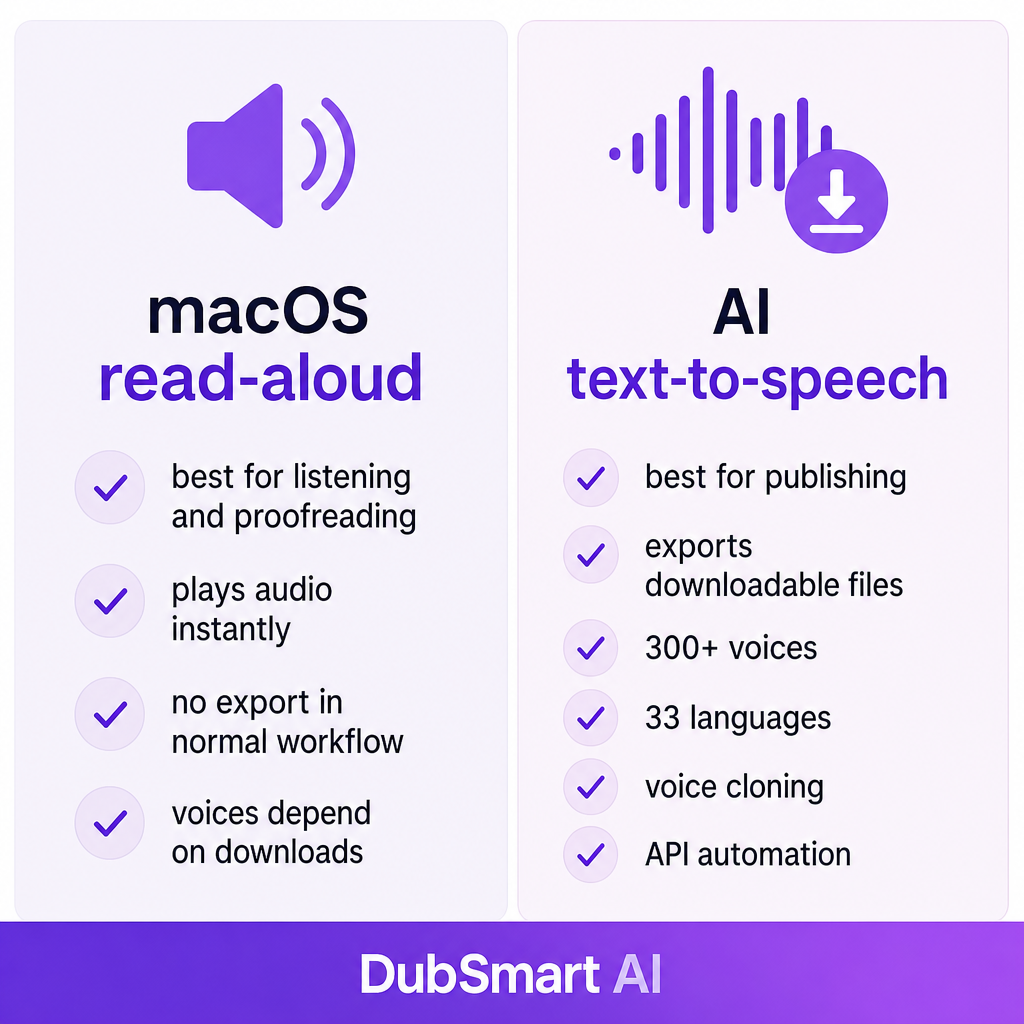
DubSmart runs in a Mac browser, so there is nothing to install. Instead of reading whatever is on screen, our Text to Speech tool turns a prepared script into an audio file you can download and publish. The product page lists more than 300 AI voices and voice generation across 33 languages, which is the practical difference between listening to a document and producing narration for a channel.
That matters when a Mac user needs to turn a video script into a downloadable narration, create voiceovers for tutorials or e-learning, produce several language versions of the same script, or keep a consistent voice across a series. We also support custom voice creation: our voice cloning workflow lets you upload at least 20 seconds of clean speech and reuse the resulting voice in both Text to Speech and AI Dubbing. Background noise degrades a clone, so a clean recording is worth the extra take.
For developers building a Mac app, website, or internal production tool, we provide a Text to Speech API with access to the same voice library and languages, plus custom voices for programmatic projects. That is the layer where you stop clicking and start generating audio automatically from your own pipeline.
How to choose the right option
The real question is not whether a voice sounds synthetic. It is whether the tool produces the output your project needs, so start from the final format and work backward.
If you only need immediate playback, macOS is usually enough. If you need an audio file for video editing, publishing, podcast distribution, or e-learning, pick a tool that explicitly supports audio generation and export rather than hoping the reader will cooperate.
Pronunciation deserves a real test, not a single demo line. Run your hardest content through the voice first: proper names, acronyms, product names, URLs, numbers, abbreviations, industry jargon, and words with more than one correct pronunciation. Apple offers custom pronunciation rules for its system speech, while dedicated AI tools may give you punctuation handling, voice instructions, or segmented generation instead. Match the control style to how fussy your script is.
Voice consistency separates occasional reading from ongoing production. A system voice is fine for reading an email, but a recurring channel, course, or brand usually needs a recognizable, reusable voice identity, a larger library, style choices, cloning, or API-driven output. Language coverage needs the same scrutiny: installing one Mac voice does not guarantee strong multilingual results, so confirm the specific language, regional pronunciation, and quality you need. For localization, also weigh translation quality, regional vocabulary, name and place pronunciation, timing against the original video, and whether one voice identity can carry across languages.
Two final checks protect you after the audio exists. On privacy, the built-in reader and a cloud service handle data differently, so review terms, retention, and commercial-use conditions before sending a script or recording to any online platform. On consent, only clone a voice when you have the speaker's permission and the right to use it, because a synthetic voice carries impersonation, fraud, and disclosure risks if used deceptively. Then judge the voice on a representative sample that includes the toughest lines, and for video, test the generated audio against the actual edit before you commit.
Fixing common Mac text-to-speech problems
Most read-aloud failures come from a handful of predictable causes, and each has a quick check.
If the shortcut does nothing, confirm that text is actually selected, that the app exposes selectable text, that Speak selection is enabled, that the shortcut has not been reassigned, and that no other app or macOS feature is using the same key combination.
If the wrong voice speaks, open System Settings → Accessibility → Read & Speak and verify the selected system voice and speech language. When the text mixes languages, check whether language detection is enabled and supported for that pairing.
If the pronunciation sounds off, add a custom pronunciation for the offending names, acronyms, or specialist terms, or rewrite the passage with punctuation and sentence breaks that signal the delivery you want.
If a voice is missing, it may still be downloading; Apple states that downloaded voices stay unavailable until the download completes and that an internet connection is required. And if the audio is not good enough for a video, that is expected rather than a bug: reading text aloud and producing a publish-ready voiceover are different tasks, so move from the system reader to a dedicated TTS workflow when you need a reusable file, multilingual output, cloning, or automation.
A Mac creator can actually use both in one process. Draft the script, let macOS TTS read it back so you catch awkward wording by ear, fix the names, numbers, and punctuation, then generate the final narration with an AI voice platform when you need an exportable file. Review that audio against the video and make human edits before publishing. The reader earns its keep at the proofreading stage; the AI tool earns its keep at production.
Frequently asked questions
Does Mac have built-in text to speech?
Yes. macOS can read selected text aloud through System Settings → Accessibility → Read & Speak. Turn on Speak selection, select text in a compatible app, and press the configured keyboard shortcut.
What is the shortcut for text to speech on Mac?
The default shortcut for speaking selected text is generally Option–Esc, and you can change it in the Read & Speak settings.
Can a Mac read a PDF aloud?
It can read selectable text in a PDF when the viewer exposes that text to macOS. A scanned PDF often needs OCR first, because the words are stored as an image rather than editable text.
Can I download the Mac text-to-speech audio?
The built-in feature is designed mainly for playback, not export. If you need a finished file for a video, podcast, or course, use a voice-generation tool that explicitly supports audio export.
Can text to speech on Mac use my own voice?
The standard read-aloud feature is not voice cloning. To generate speech in a custom voice, use a dedicated cloning service and get the speaker's permission first. DubSmart can create a reusable voice from at least 20 seconds of clean audio.
Is Mac text to speech free?
The built-in macOS feature comes with the operating system, and extra voices may require downloads. Third-party AI voice platforms may use separate account, credit, subscription, or API pricing.