The fastest way to transcribe a video to text is to let an AI speech-to-text tool do the first pass: upload the video file or paste a YouTube link, let the system convert the spoken audio into an editable transcript, then review the parts most likely to be wrong. That last step matters more than most people expect, because "fast" should mean a quick first-pass transcript plus a short quality-control sweep, not instant perfection. Manual typing, by contrast, means stopping, rewinding, and retyping every line, which is where the hours disappear.
If you want the practical version of how to transcribe a video to text, our Speech to Text workflow accepts video uploads and YouTube links, lets you edit the resulting project, supports more than 60 languages, and handles files up to 5 GB with no stated video-length limit. The rest of this guide explains the mechanism behind that, how to choose the right output, and how to keep accuracy high when the audio fights back.
Table of contents
What transcribing a video to text actually means
Video transcription converts the spoken audio inside a video into written words. That single output can serve many jobs: a full video transcript, subtitles or closed captions, an editing script, a blog or newsletter draft, searchable records of meetings and lectures, or source text you later translate for new audiences.
It helps to separate three terms that often get blurred. Transcription keeps the original spoken language in text form. Translation converts that content into another language. Dubbing replaces or adds spoken audio in a different language. You transcribe first, then decide whether translation or dubbing is the next step. If you want the deeper definition of the recognition technology behind all of this, our guide to how speech-to-text works covers the fundamentals.
How AI video transcription works under the hood
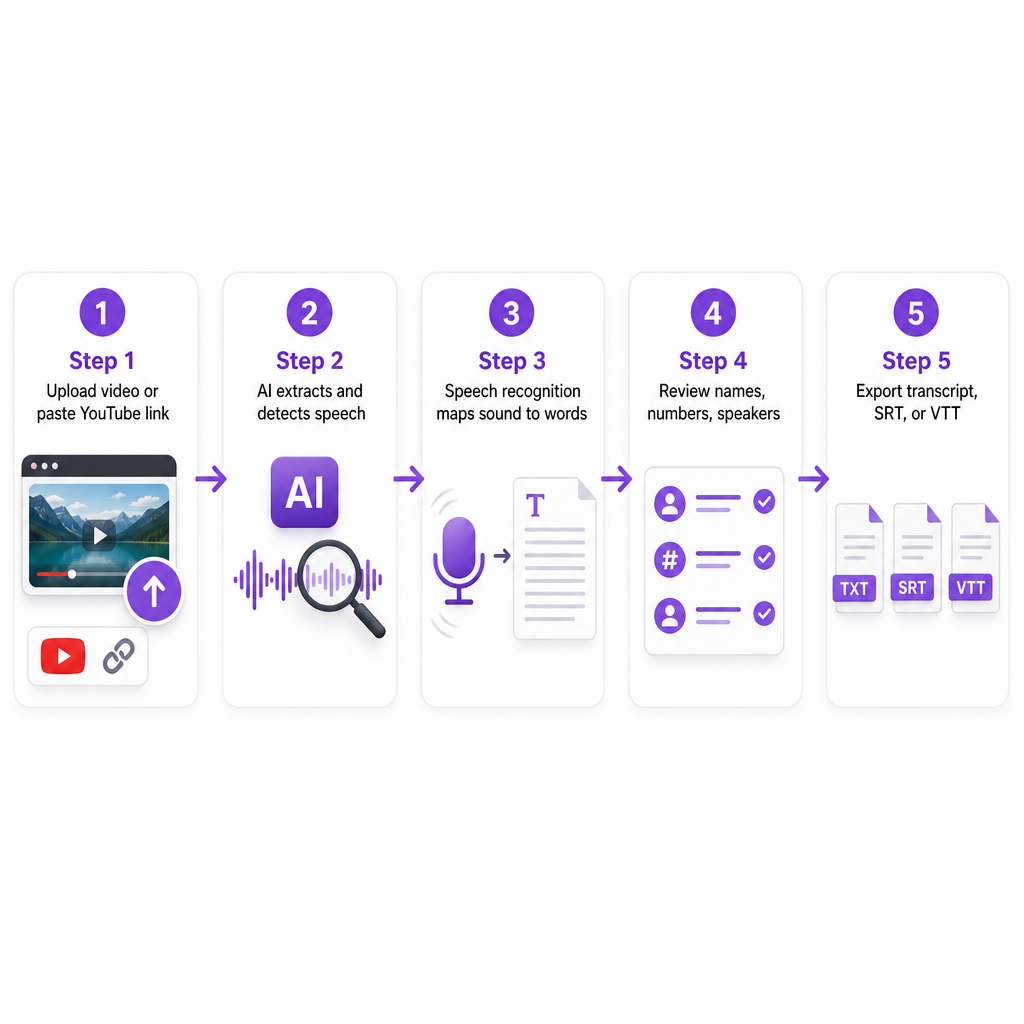
Knowing the pipeline helps you predict where errors come from. Most automatic transcription systems move through the same stages. First, the system reads the audio track inside the video. Next, it detects which sections actually contain speech. A recognition model then maps sound patterns to words, and a language-processing step uses surrounding context to improve those predictions. The recognized words get assembled into sentences or timed segments, and finally you correct and export the result.
The recognition model is only part of the quality equation. Microphone quality, overlapping speakers, accents, background music, room echo, technical vocabulary, and interruptions all shape the output. Our Speech to Text system is built to handle noisy environments, multiple speakers, and different languages and dialects, with the honest caveat that accuracy varies with audio quality and accent diversity. That caveat is the reason the review pass exists rather than a flaw to hide.
Transcript, captions, or subtitles: pick the right output
The best export format depends entirely on what the text is for, and choosing wrong wastes time later.
A plain transcript is readable text with no required timing. Reach for it when you need research notes, meeting records, a video script, a blog or newsletter draft, or content to repurpose. Timestamps are optional here, though they help editors jump around.
Captions synchronize text with the video and can carry relevant non-speech information such as music, applause, or a door closing. They matter for accessibility and for anyone watching without sound. Subtitles typically display spoken dialogue for viewers who do not understand the language. When you need subtitles in another language, transcribe the original first, then translate and time the translated text.
For timed formats, WebVTT is a web standard for time-aligned text tracks; the W3C WebVTT specification describes it as a format for captions, subtitles, chapters, descriptions, and other metadata synchronized with audio or video. For YouTube uploads, SubRip .srt and .vtt are both among the supported subtitle formats, and YouTube notes that basic .srt files must use plain UTF-8 encoding.
Clean the audio before you transcribe noisy video
Background noise is one of the most common causes of transcription errors. Street sounds, air conditioning, microphone feedback, competing music, and room echo all blur the boundaries between words, and the recognition model has less signal to work with.
The fix is to isolate the speech before transcription. Our Speech Separator removes background noise and separates spoken words from the surrounding audio, supporting major formats such as MP3, WAV, and AAC as well as video files. It earns its place in the workflow for interviews recorded outdoors, podcasts captured in untreated rooms, videos with heavy background music, panel discussions with uneven microphone levels, and archival footage carrying hum or ambient noise.
One caution for accessibility work: do not strip every sound reflexively. If a noise carries meaning, such as a siren, an alarm, or a loudspeaker announcement, it may still need to be represented in captions even when it is excluded from the clean speech track you send for transcription.
How to improve transcription accuracy
Treat AI transcription as a strong first draft, then apply targeted controls instead of re-reading everything blindly.
Start with the clearest source file. Upload the original recording rather than a compressed social-media download, since a cleaner speech signal gives the model more to work with. Reduce competing audio by lowering or removing background music, and use the cleanest available speech track if the video has separate ones. Select the language or dialect that matches the recording when the option exists, which helps the system interpret pronunciation, spelling, and sentence structure.
Then go after the predictable failure points. Search the transcript for proper nouns such as names, brands, locations, product terms, and jargon rather than trusting a general read. Review speaker changes, and add speaker labels manually when the transcript will be used for legal, educational, research, or editorial purposes. Verify short, meaning-critical items: dates, prices, percentages, measurements, URLs, acronyms, negations like "not," and similar-sounding words, because a single slip can invert a sentence.
The most reliable method is to play the video while following the transcript. For a long recording, jump first to sections with names, numbers, unclear audio, or overlapping voices. This mirrors a caution worth internalizing: automatic captions can misrepresent speech because of mispronunciations, accents, dialects, and background noise.
Matching the workflow to your content type
Different formats stress different parts of the process, so adjust where you spend review time.
For YouTube videos, a transcript feeds captions, descriptions, chapters, clip selection, and search-focused repurposing; use the original upload or a high-quality source when you own the video. Interviews and podcasts usually need speaker labels and stronger noise handling, so clean busy-environment audio first and keep speaker identity consistent. E-learning and training videos should prioritize accuracy in instructions, terminology, numbers, and on-screen references, with captions synced closely enough that learners track the explanation and the screen together.
Business meetings turn into searchable records and action items, but sensitive conversations call for extra care: verify names, decisions, dates, and assigned responsibilities before sharing. Short-form social videos often convert the transcript into on-screen captions, a post description, or translated versions, so keep line breaks short for mobile and make sure captions do not cover important visuals.
How to choose a video-to-text tool
Evaluate the whole workflow, not just an advertised accuracy number. The table below maps the criteria that actually change your turnaround and output quality.
| Decision criterion | What to check |
|---|---|
| Input support | Does it accept your video, audio, or a YouTube URL? |
| File limits | What is the maximum file size and video duration? |
| Language coverage | Does it support your language, dialect, and accents? |
| Speaker handling | Can you identify or separate multiple speakers? |
| Output formats | Can you export plain text, SRT, or VTT? |
| Integration | Is there an API for processing videos at scale? |
Our public Speech to Text page confirms video and YouTube-link input, editable projects, downloads, support for more than 60 languages, and a 5 GB size limit. We do not state on that page whether every output includes timestamps, how long files are retained, or whether speaker identification is automatic, so confirm those specifics for your own workflow before committing sensitive or high-volume content. If any of those answers are decisive for you, tell us your file type, language, speaker count, and intended output and we can point you to the right configuration.
Privacy, rights, and a sensible review standard
A transcript can contain confidential business information, personal data, customer conversations, unreleased content, or copyrighted material. Before uploading, confirm you have permission to process the recording, that any required speaker consent exists, and whether the video contains confidential or regulated information. Check how a provider stores and deletes uploaded files and generated transcripts, who can access the project and exports, and whether files may be used for model training. Remember that transcribing a copyrighted recording is technically easy but does not grant permission to redistribute its contents; you still need rights to publish the source, transcript, captions, or translations.
Calibrate review depth to the stakes. A light review suits social clips, internal notes, and rough ideation: scan for obvious errors, names, numbers, and missing sentences. A full review suits courses, public captions, interviews, customer records, legal material, and anything published: listen to the complete recording, correct wording, verify speaker labels, check timestamps, and confirm captions meet the destination platform's format rules. For accessibility, review beyond the dialogue, since important sound effects, speaker changes, and meaningful cues may need representation in captions.
The efficient path is the same every time: start with the cleanest video you have, isolate speech when the audio is difficult, generate an editable transcript, verify names and numbers, and export the format your platform requires. For teams working across languages, that transcript is also the natural starting point for translation and dubbing later.
Frequently asked questions
What is the fastest way to transcribe a video to text?
Use an automatic speech-to-text tool that accepts the video directly or supports a YouTube link. Upload the clearest source, select the correct language, generate the transcript, then review the most error-prone sections first.
Can I transcribe a video without manually typing?
Yes. AI speech-to-text tools convert spoken audio into editable text automatically. You should still review the output, because accuracy can vary with noise, accents, overlapping speech, and specialist vocabulary.
Can DubSmart transcribe a long video?
Yes. Our Speech to Text tool accepts uploaded audio or video and YouTube links, supports editing, and lets you download the finished project. We state support for more than 60 languages and a 5 GB file limit, with no stated video-length limit; actual processing time varies with the file and audio.
What should I do if the transcript has many errors?
Improve the source audio first. Remove competing noise with a speech-separation tool, confirm the selected language, then regenerate or edit the transcript, paying special attention to proper names, numbers, accents, and overlapping speakers.
Which subtitle format should I use?
Use the format your platform requires. SRT is widely supported, while WebVTT is a web-oriented timed-text format, and YouTube supports both among its subtitle formats.