You can turn any script into natural, ready-to-publish audio on Windows in a few minutes, and the built-in tools cost nothing to try. Windows 10 and 11 ship with Narrator and, inside Office, a Speak command that reads text aloud instantly. That's fine for proofreading. When you need voiceover that's clean enough to publish and available in more than one language, that's where a browser-based tool like our Text to Speech steps in.
This guide covers both paths: the free Windows tools you can enable yourself, and the point where those tools run out of road for creators. The primary keyword here is text to speech for windows, and the honest answer is that Windows has two answers to it — one built into the operating system, and one that lives in your browser.
Table of contents
- What you need before you start
- Turn on text to speech in Windows step by step
- Create publish-ready audio with DubSmart on Windows
- Common mistakes and quick fixes
- When Windows TTS is enough and when we take over
- Frequently asked questions
What you need before you start
Nothing here requires special hardware or admin rights. Narrator is part of Windows accessibility, so a standard account can enable it. Here's the short checklist for both routes.
- A Windows 10 or Windows 11 PC.
- Speakers or headphones connected and working.
- Access to Settings > Ease of Access (Windows 10) or Settings > Accessibility (Windows 11).
- A script or text you want read aloud or turned into a voiceover file.
- Optional: Microsoft Office, if you want to use the Speak command inside Word or Outlook.
- Optional: additional language packs or natural voices if you plan to test built-in voices beyond the default English one.
For publish-ready audio you'll also want a modern browser and internet connection, plus a DubSmart AI account. Our free tier covers light use, so you can test a voice on a real script before committing credits.
Turn on text to speech in Windows step by step
Start with the built-in tools. They give you a baseline and let you hear exactly what stock Windows voices sound like, which matters for the decision later.
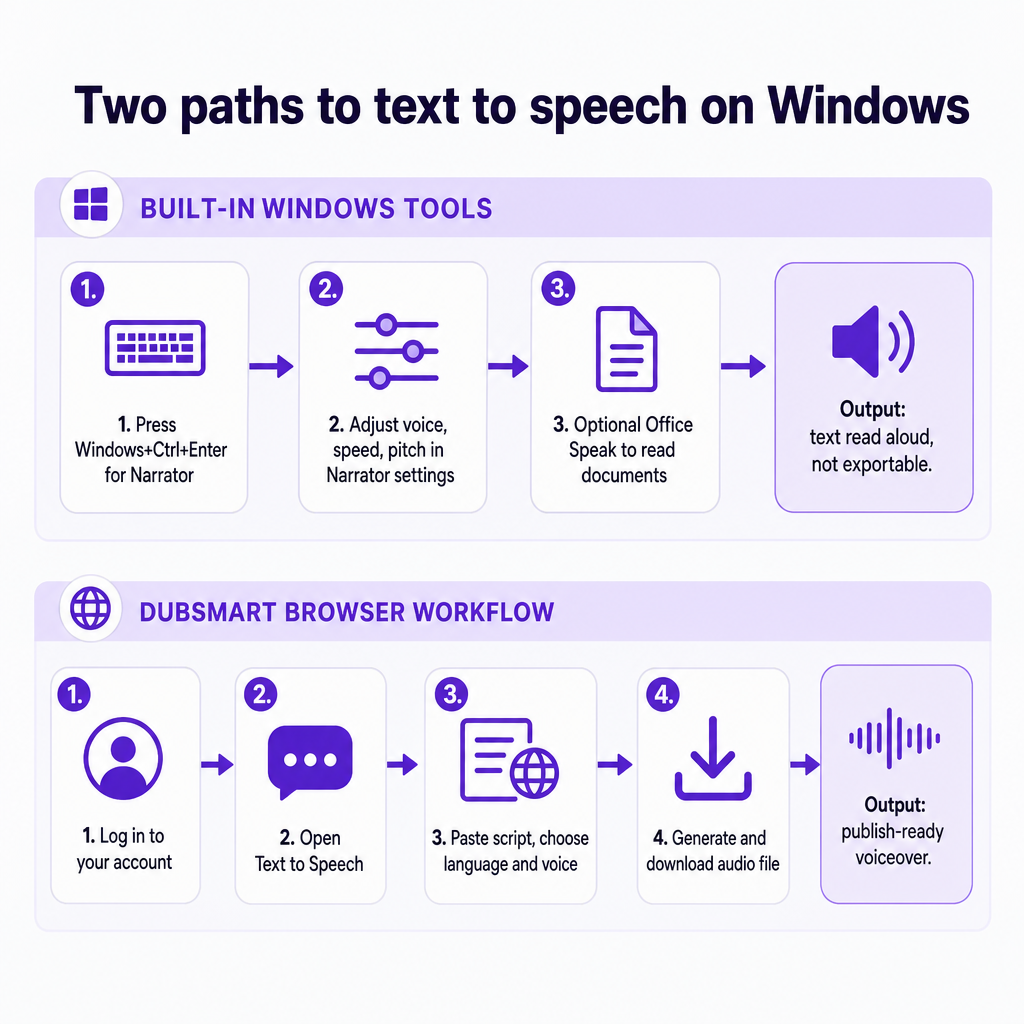
- Launch Narrator instantly. Press Windows + Ctrl + Enter. Narrator starts and immediately reads on-screen text aloud. The same shortcut turns it off.
- Open Narrator settings. On Windows 10, go to Settings > Ease of Access > Narrator. On Windows 11, go to Settings > Accessibility > Narrator. From here you can adjust voice, pitch, speed, and verbosity.
- Add extra voices if the default sounds robotic. In Windows 11, look under Settings > Accessibility > Narrator for the option to add natural voices, download one, and restart. If your target language isn't listed, add it first under Settings > Time & Language > Language.
- Optional — set up Office Speak for documents. In Word or Outlook, open Options > Quick Access Toolbar (or Customize Ribbon), add the Speak command, then highlight text and click Speak. It uses the Windows speech engine to read the selection aloud.
That covers reading text aloud. What it does not do is produce a downloadable, edit-ready audio file with a natural voice you'd be comfortable putting on a public video. Narrator and Speak are built for accessibility and listening, not for exporting voiceover. If you want the background on how synthetic speech actually works, our own text to speech explainer covers the concepts so this guide can stay focused on the Windows workflow.
Create publish-ready audio with DubSmart on Windows
When the audio has to leave your PC and land in a video, a course, or a podcast, you need a file — not a screen reader. Our platform runs in the browser, so on Windows 10 or 11 there's nothing to install. You work from the same PC you already edit on.
- Sign in to your DubSmart account. Create a free account or log into an existing one. No download, no plugin.
- Open the Text to Speech tool from the dashboard.
- Paste or upload your script. This is the same script you might have proofread with Narrator.
- Choose your language and voice. We offer a library of 300+ natural-sounding voices, so you can match tone to the content rather than settle for a single system voice.
- Adjust delivery — pace and style controls where available — then generate the audio.
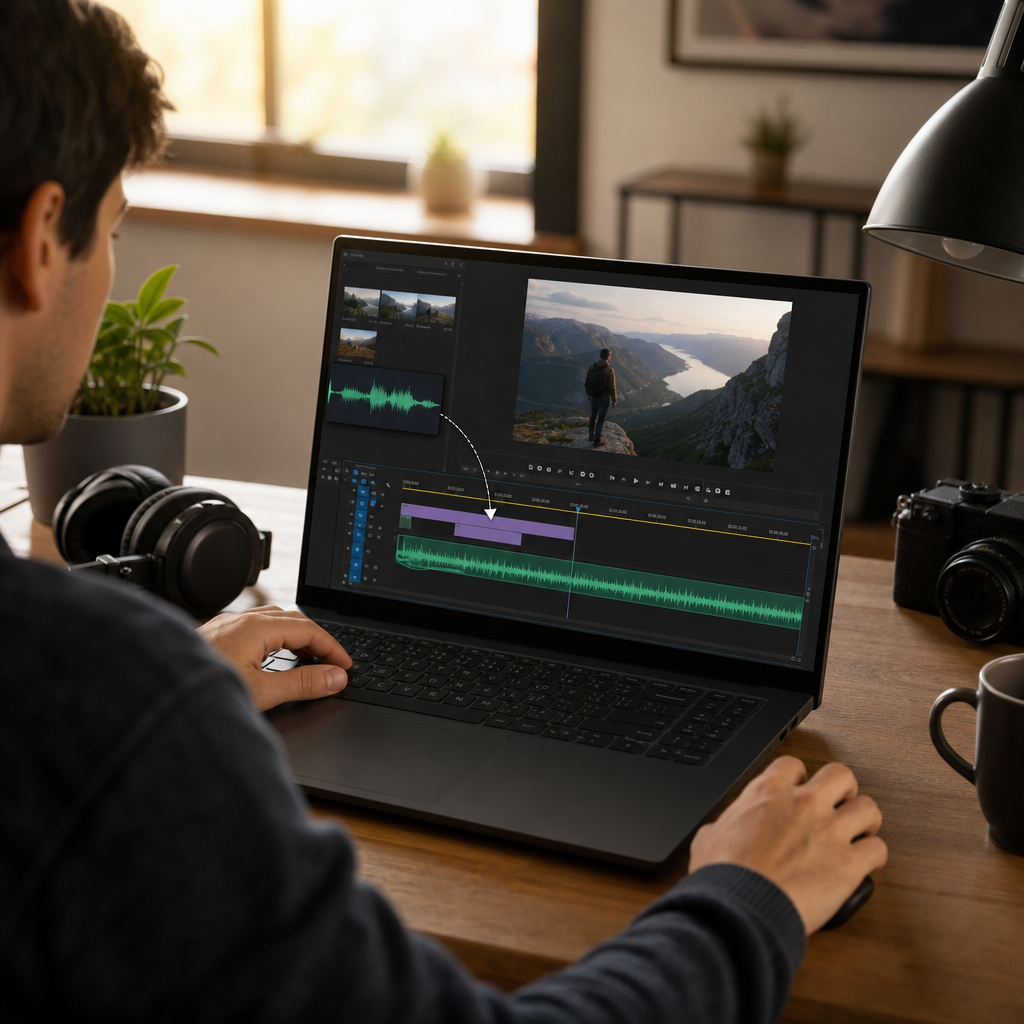
- Download the file and drop it straight into your editor of choice on Windows, whether that's a timeline editor, PowerPoint, or an e-learning authoring tool.
Because everything sits in one workflow, the same script can move from text to voiceover to a fully dubbed video without hopping between tools. We support dubbing from 60+ source languages into 33 target languages, which is the practical difference for anyone running a multilingual channel. Generation uses credits from your plan; the free tier handles light work, credits roll over, and enterprise plans cover higher volume.
Common mistakes and quick fixes
Most problems on Windows come down to a handful of settings. Here's what actually goes wrong and how to clear it.
No sound from Narrator or Speak. Usually the system is muted, the wrong output device is selected, or the audio driver is stale. Check the volume mixer and confirm the correct output device in sound settings. If it's still silent, open Device Manager > Audio inputs and outputs and update the driver.
Your voice or language isn't listed. The language pack or natural voice hasn't been installed, or you're on an older build. Add the language under Settings > Time & Language > Language, then add the natural voice from Narrator settings and restart.
Narrator reads too fast, too slow, or sounds mechanical. Speed and voice are set in Narrator settings — adjust rate, pitch, and voice there. Worth knowing: even fully tuned, stock Windows voices tend to sound flatter than modern AI voices, which is exactly the wall creators hit when they try to publish.
Speak is missing in Office. The command isn't on your toolbar. Add it through Options > Quick Access Toolbar, then highlight text and press Speak.
You can't get a usable file for your editor. This isn't a bug — Narrator and Speak don't export audio. If you need a downloadable WAV or MP3 for a video, that's the moment to switch to a tool built to render and download files, which is what our Text to Speech does.
When Windows TTS is enough and when we take over
The split is cleaner than most guides admit. Built-in Windows tools are the right choice when you're the only listener.
Handle it yourself on Windows when you want to:
- Proofread a draft by ear before recording or publishing.
- Read documents, articles, or emails aloud for accessibility or focus.
- Test a voice, speed, or language quickly with no account needed.
Bring the work to us when the audio has to be published or scaled:
- Publishing, not listening. You need a natural voiceover file clean enough for a video, ad, or course — something Narrator and Speak simply don't produce.
- More than one language. Localizing a YouTube channel or training library into languages Windows voices don't cover well. We dub from 60+ source languages into 33 targets.
- A consistent brand voice. You want the same voice across dozens of videos, or your own voice cloned from as little as 20 seconds of audio.
- Volume and integration. Teams and agencies generating large batches can drive our Text to Speech, Voice Cloning, and AI Dubbing through API rather than clicking through each file.
No licensing or regulatory threshold applies here — text to speech on Windows and in our platform is ordinary creative work. The only real obligations are respecting copyright on your source material and following the terms of the platforms you publish to. If you're weighing your first project, tell us the script length, target languages, and where the audio will run, and we can point you to the right voice and plan.
Frequently asked questions
What is the fastest way to use text to speech on Windows?
Press Windows + Ctrl + Enter to launch Narrator, which reads on-screen text aloud instantly. For a downloadable voiceover file instead of a screen reader, use a browser tool like our Text to Speech.
Can I use DubSmart AI text to speech on Windows 10 or 11?
Yes. Our platform runs in the browser, so there's nothing to install on Windows 10 or 11 — you just need a modern browser, an internet connection, and an account.
How natural are Windows built-in voices compared to AI voices?
Windows now lets you add natural voices in Narrator, which improves on legacy system voices. They're still built for accessibility and reading aloud, and generally sound flatter than the AI voices designed for published voiceover.
What audio formats can I use with my Windows video editor?
Our Text to Speech produces a standard downloadable audio file you can drop into common Windows editors. Confirm the exact export format in your account for the current options.
Do I need a powerful PC to use text to speech for Windows?
No. Narrator and Office Speak are lightweight and built into Windows. Because our tool processes audio in the cloud, a standard Windows PC with a browser is all you need.